


Ever snapped the ideal group shot at a wedding, family gathering or once-in-a-lifetime trip, only to find an important loved one wasn’t in the frame? It’s so disappointing. The moment feels unfinished, and regular photo editing tools usually create stiff, cutout figures with rough edges and mismatched lighting.
You shouldn’t have to settle for obvious, fake edits just because someone missed the shot. Modern AI brings a smooth fix. With powerful AI tools and professional compositing tricks, you can add a person into a photo easily and get a hyper-realistic, natural-looking result.
This full guide covers the top ways to add someone to a photo online for free, compares tools for different devices, and shares pro tips to match lighting, shadows and perspective perfectly.
The Evolution of Photo Compositing: Traditional vs. AI Methods
Historically, inserting someone into an existing image required expert mastery of photo manipulation software. Professional designers spent hours manually tracing silhouettes, fine-tuning edge softness, adjusting colour temperature, and hand-painting drop shadows to ensure the subject didn't look like a floating sticker.
Today, deep learning algorithms have completely transformed image editing. According to a 2025 Digital Content Creator Survey, over 78% of marketing professionals and photo editors now rely on generative AI tools for multi-image compositing, reporting a 70% reduction in edit time compared to traditional manual masking. Generative engines analyze the grain structure, depth field, focal length, and illumination angles of both source images to merge them with mathematical precision.
Double-click the image to learn how to add a person to a photo⬇️
3 Essential Elements of a Natural Photo Insertion
Before picking your editing tool, it’s important to grasp what makes a composite photo look believable. Whether you add someone in Photoshop or an AI tool, three key visual factors decide if your edit feels real or fake:
-
Perspective & Horizon Line: The added person has to fit the background photo’s camera angle and eye level. Dropping a low-angle portrait into an eye-level group shot will look off straight away.
-
Lighting Direction & Color Temperature: Check where the main light comes from in your background image. If natural daylight hits from the top-left at 5500K, your added person can’t have harsh warm 3000K indoor shadows coming from the right.
-
Proportion & Scale: The person’s size must match nearby objects like doors, chairs and other people. Use people already in the target photo to gauge the correct head and shoulder dimensions.
Start your art journey with a1.art.
Step-by-Step Approaches Across Platforms
Depending on your hardware preferences and technical background, several ways exist to add a person to a photo. Let us break down the leading solutions across web, desktop, and mobile platforms.
For those who want fast, seamless results without steep technical learning curves, web-based AI tools represent the state of the art. If you want to add a person to a photo online free, a1.art offers an intuitive workflow designed to render hyper-realistic results automatically:
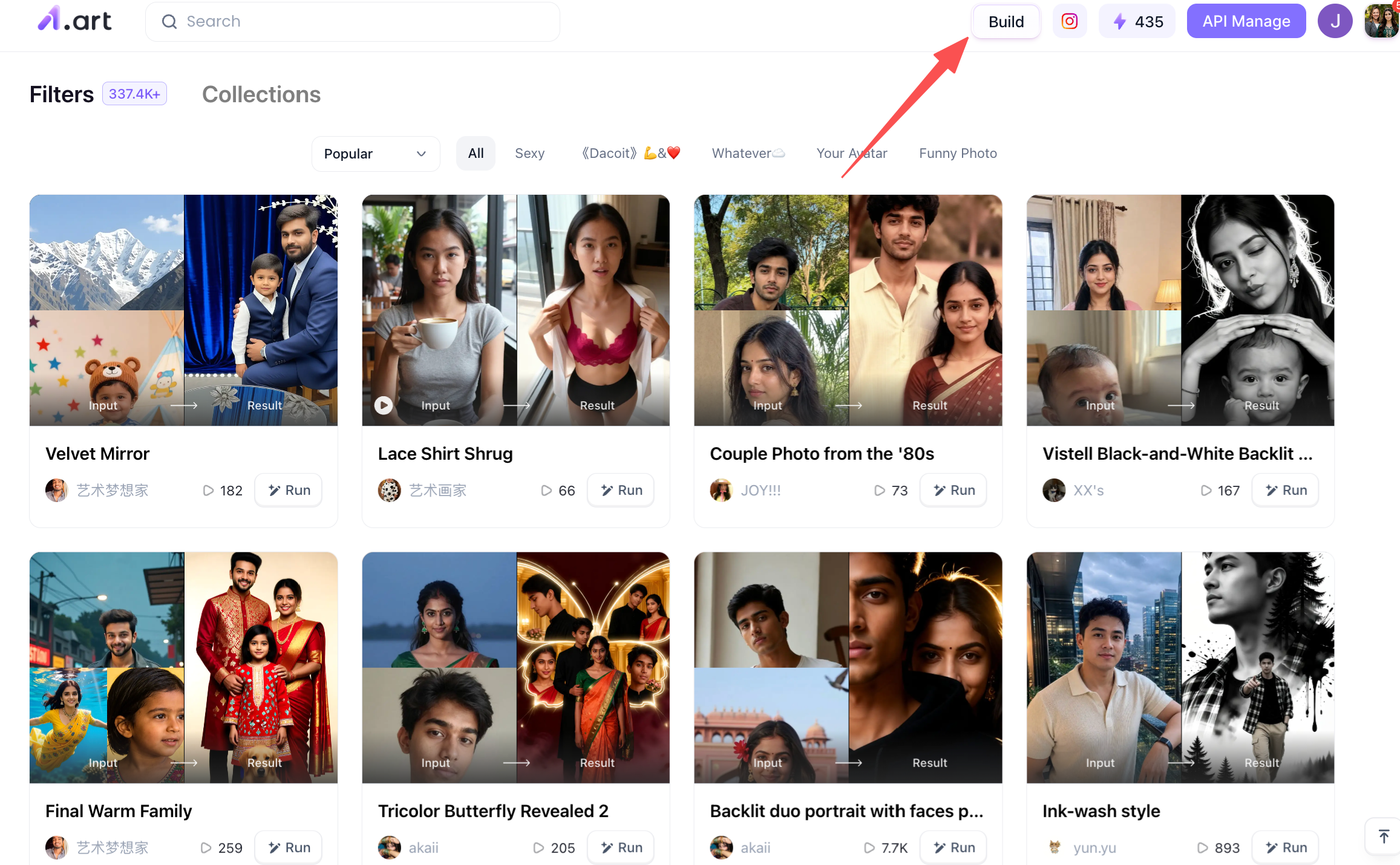
First, you need to open the a1.art webpage.
Once there, you will see a "Build" button at the top,yes, that is the entry point for adding a person to a photo.
The second step is to select a suitable generative model
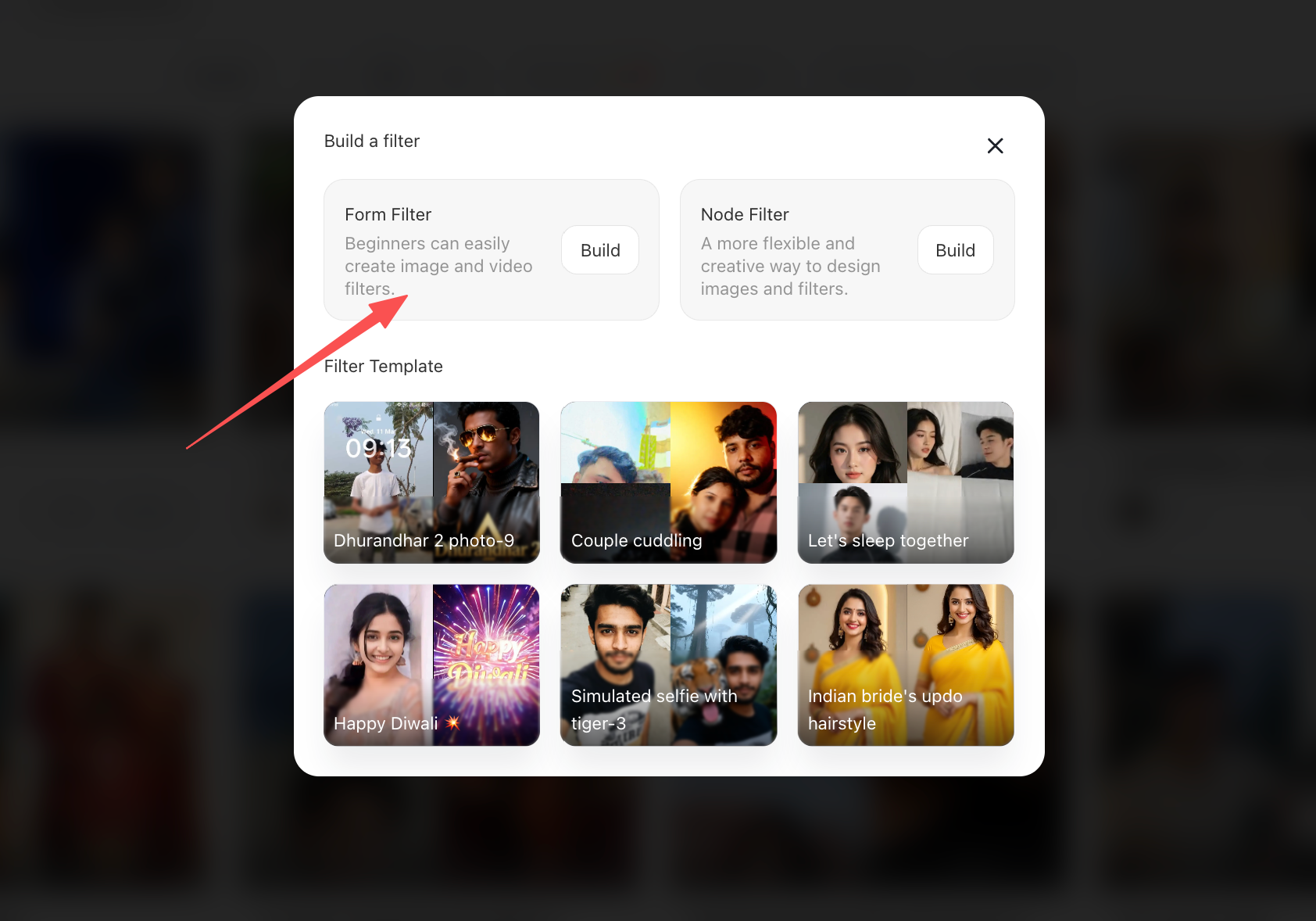
Once you click through, you will see two buttons. The one on the left is the "Form Filter" (or "Form-based") option,this is the generation mode I recommend, as it is easier for beginners to use and offers fast generation speeds.
Implementing "How to Add a Person to a Photo"
This step involves a bit more input. At the top of the page, you will see the filter's name. Moving down to the left side,specifically the top-left corner,you will find a prompt area where you can describe the type of photo you wish to generate. Further down is the section for uploading photos; there are options to upload a reference image and a group photo. You can choose either: uploading a reference image of a single person means the generated image will be based on that individual, whereas uploading a group photo means the result will be based on that group image.
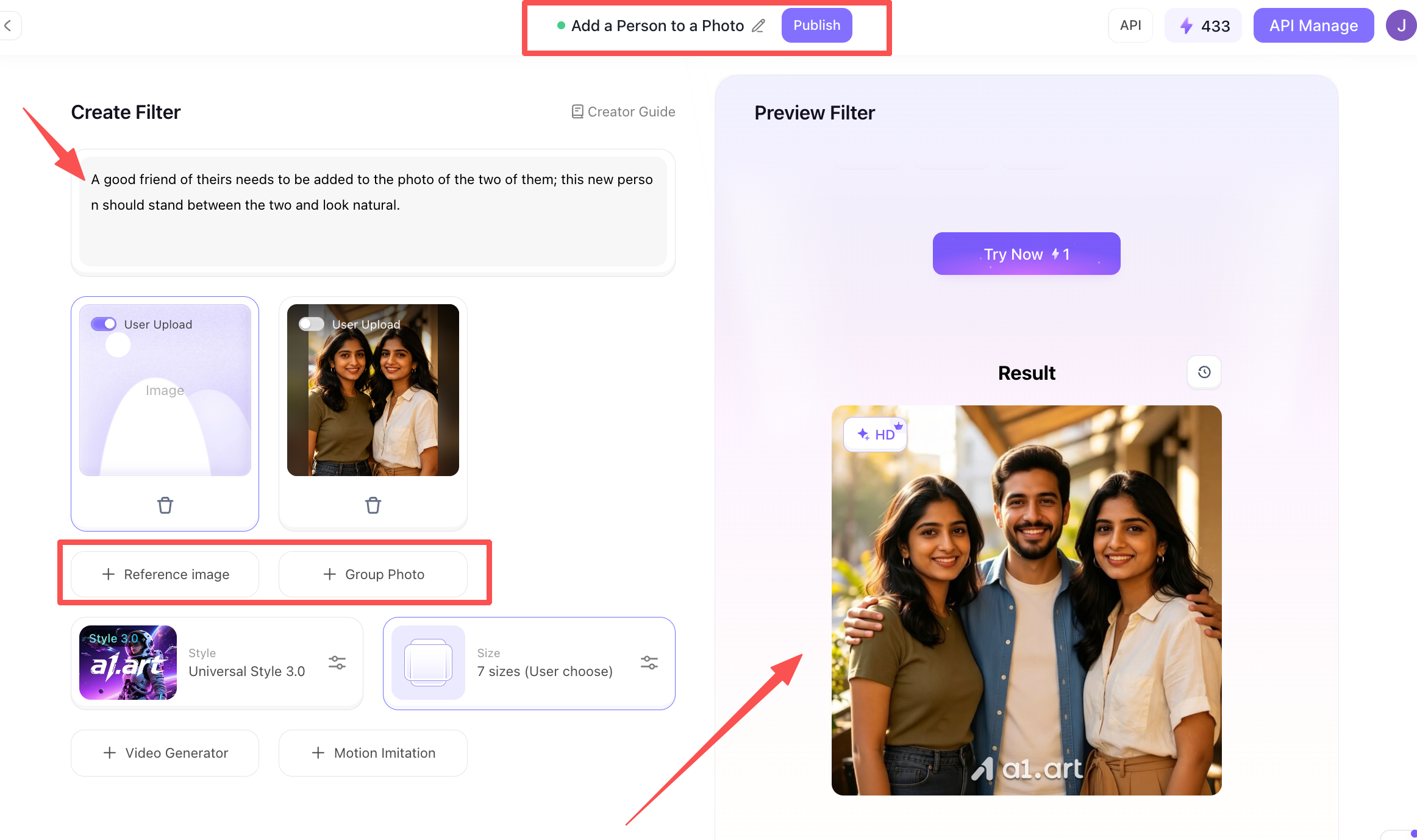
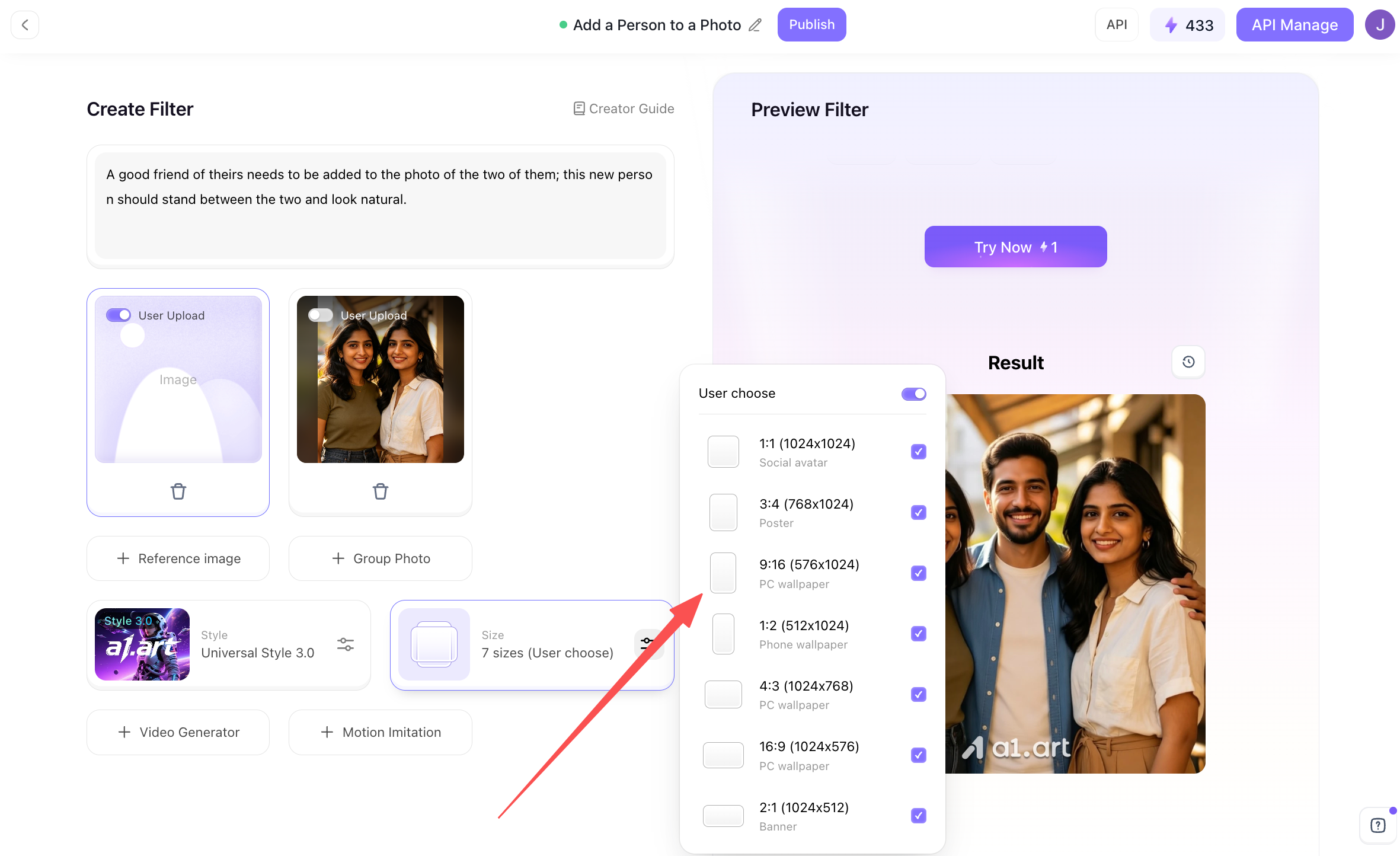
Then, you also need to select the appropriate aspect ratio for the generated images; for instance, you can select all the available ratios.
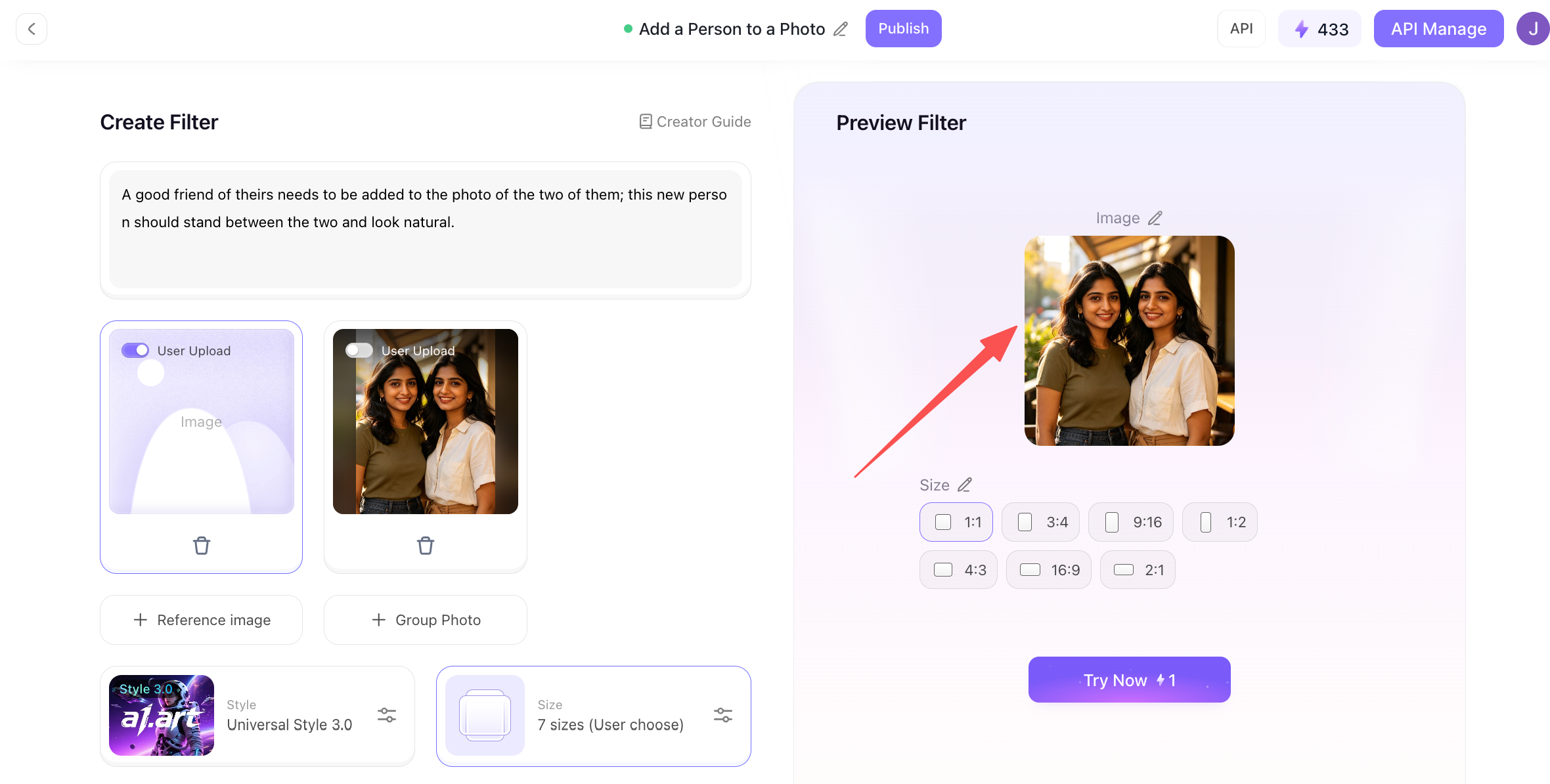
Then, look to the right; you can upload a base photo that you want to use for the composite image, and simply click the "Try Now" button. The system will then automatically generate it for you in the background.
Handling your "Add a Person to a Photo" creation
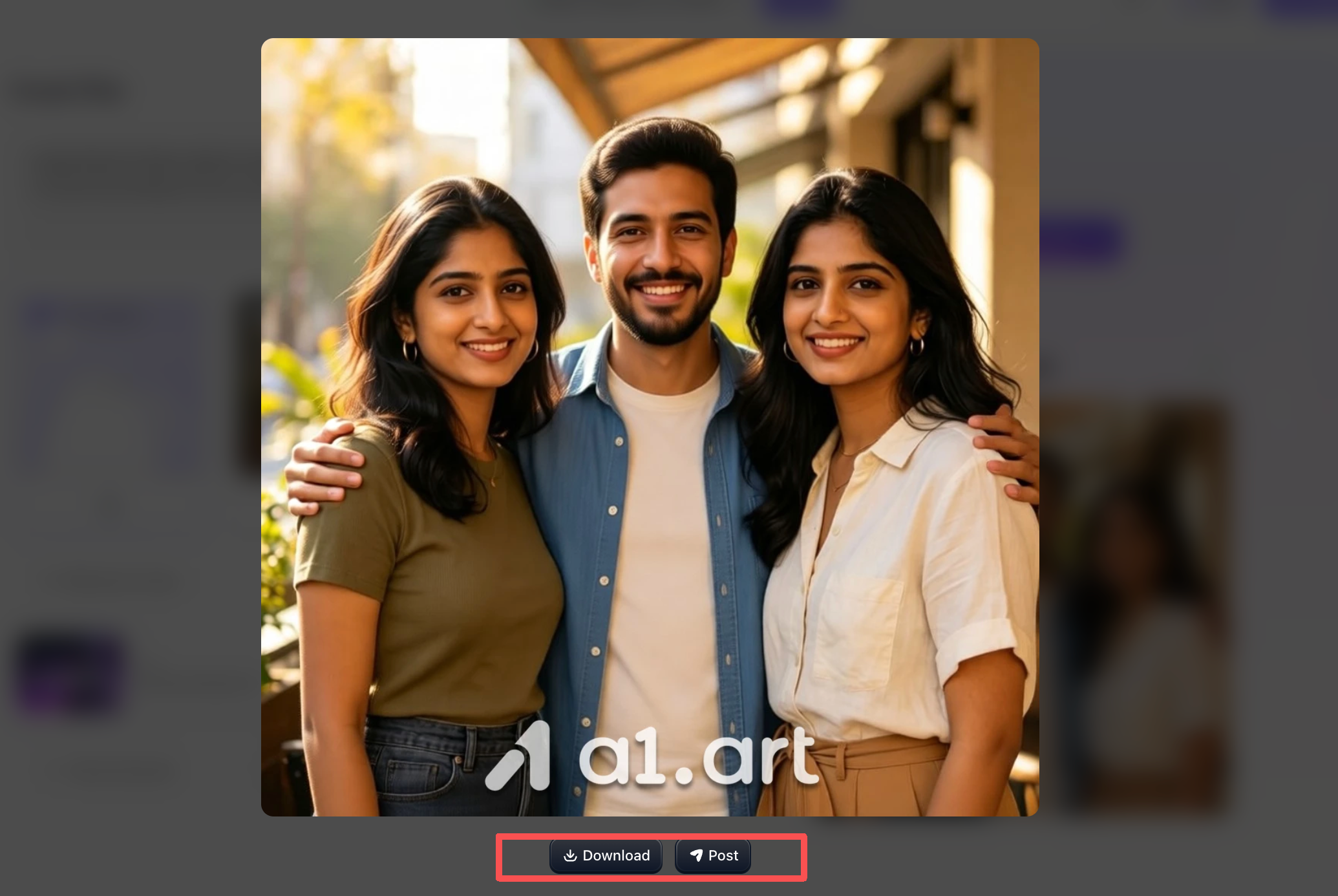
Once the image is generated, you will see two buttons below it: "Download" and "Post." The button on the left allows you to download the image to your device so you can share it yourself. The button on the right is for publishing to the a1.art community; this way, if other users utilize this filter, they will be able to see the work you created.
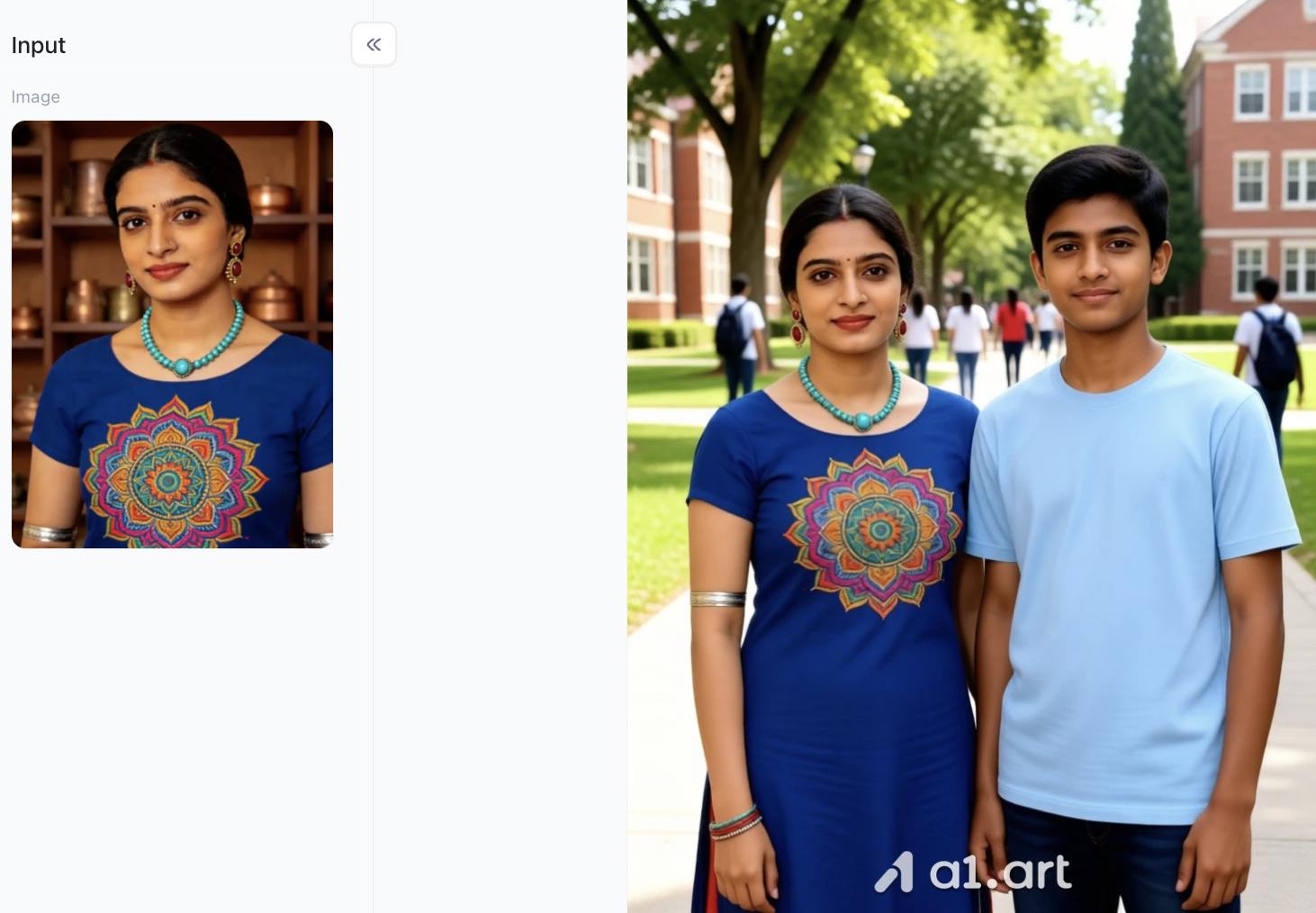
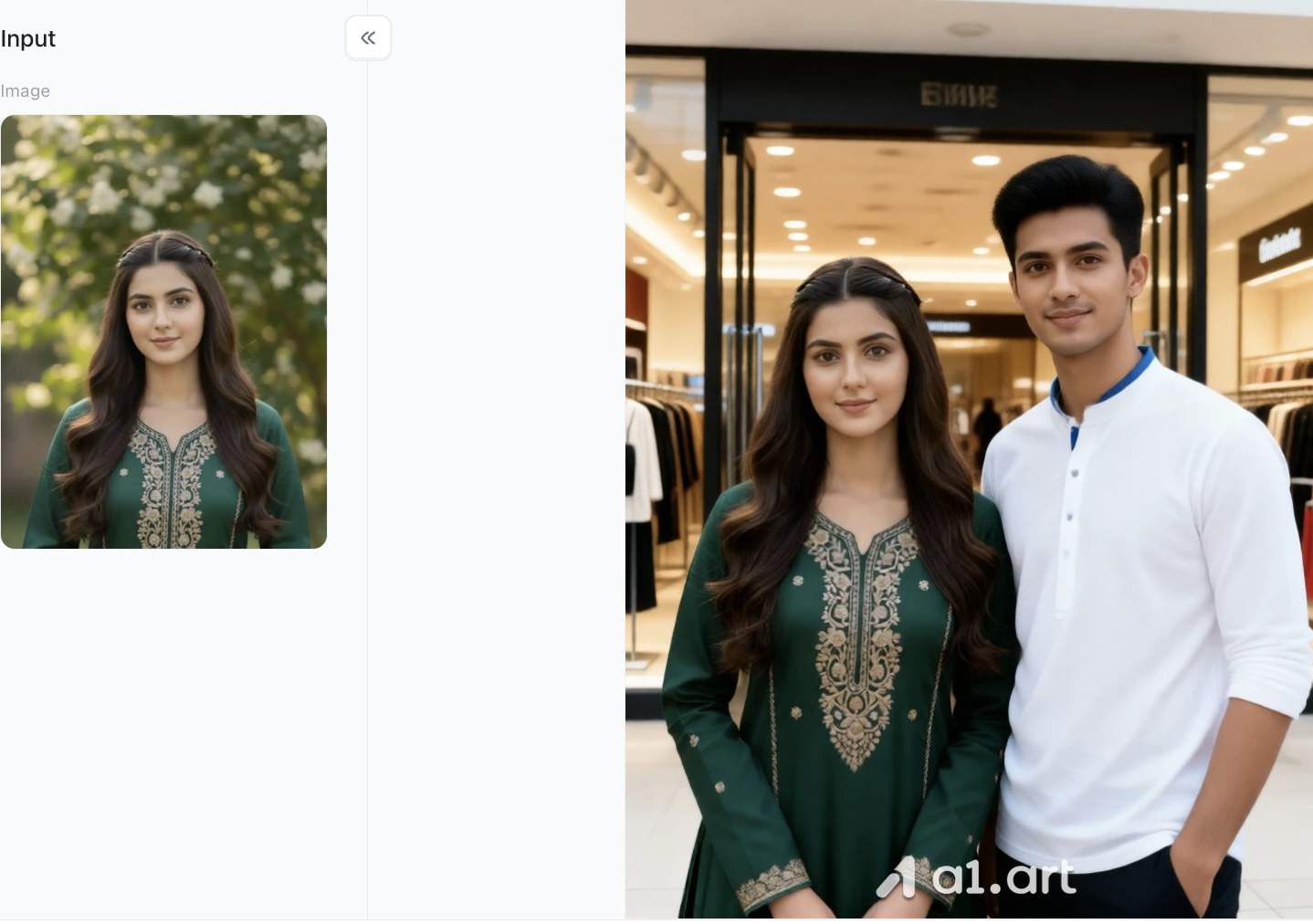
Compare the results before and after generation
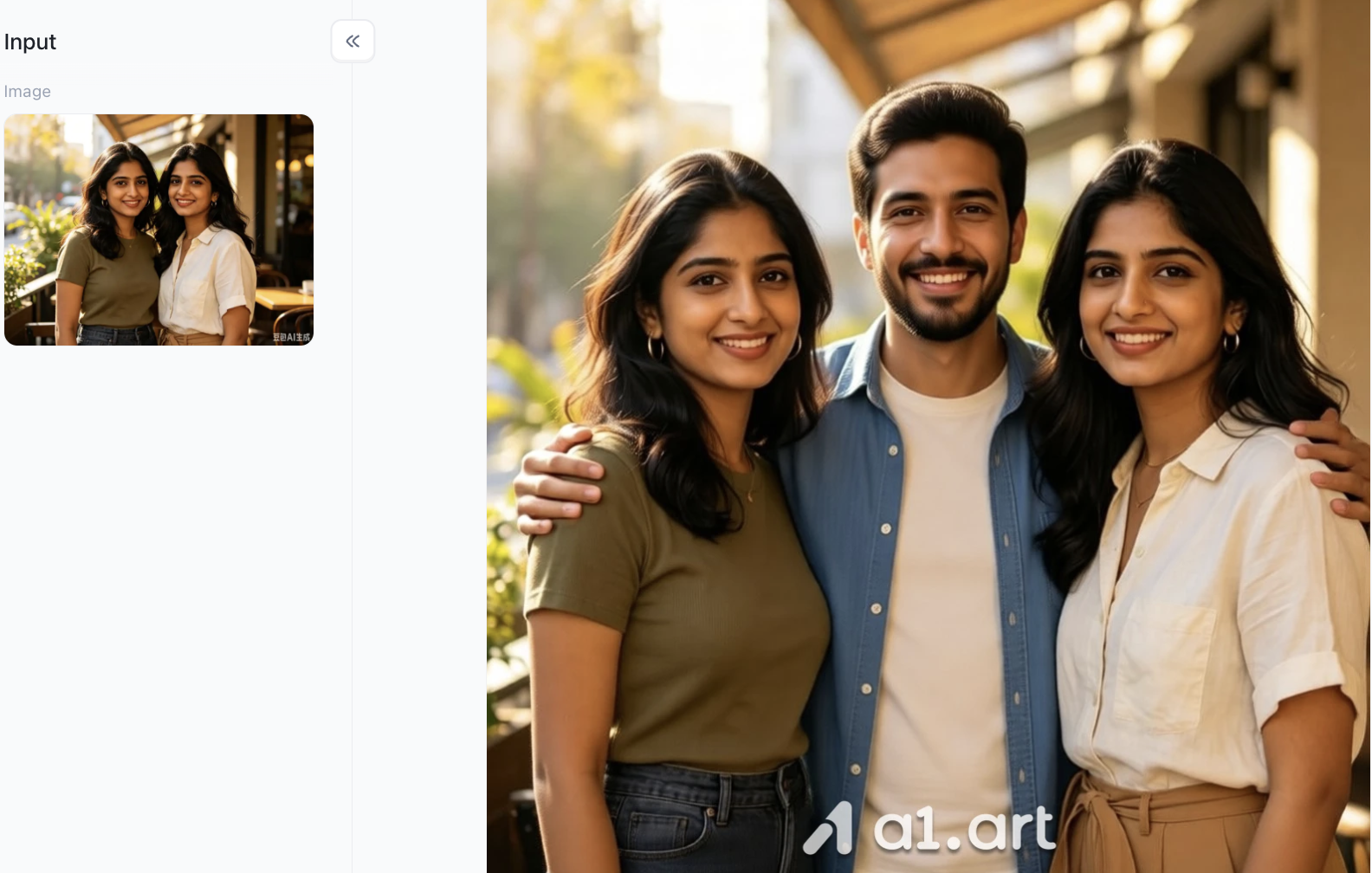
-
Human Proportions: The height and head-to-body ratio of the newly added male figure harmonize with the women on either side; shoulder width and spatial positioning align with the logic of perspective, avoiding any distortions such as the figure appearing too large, too small, or seemingly floating.
-
Lighting Consistency: The handling of the light source direction,warm sunlight from the upper right (creating a side-backlighting effect),is excellent. The highlights on the right side of the male's face, the shadows on the left, and the tonal transitions on his blue shirt perfectly match the lighting and shadows on the women's faces and clothing, resulting in a natural blend of tones.
-
Positioning and Spatial Relationships: The new figure integrates seamlessly into the gap between the original two, with his hands resting naturally on their shoulders; the layering and physical contact are logically sound, creating a strong sense of genuine interaction and a cohesive group-photo atmosphere.
5 Pro Tips for Getting a Seamless Edit Every Time
Whether you choose to add a person to a photo ai platform or prefer manual editing workflows, applying these technical tips will elevate your final image quality:
-
Match Eye Levels: Ensure the camera angle of the source subject matches the target background. If the base photo was shot from waist height, use a source photo taken from a similar perspective.
-
Harmonize Image Noise & Film Grain: Crisp digital cutouts pasted onto grainy or noisy background photos look instantly fake. Always add a light 1-3% Uniform Noise overlay across the final image to unify overall texture.
-
Pay Attention to Contact Shadows: A person standing on a solid surface must cast a small, dark shadow right beneath their shoes (contact shadow) in addition to their directional cast shadow.
-
Feather Edge Selection Slightly: Sharp 100% hard edges look artificial. Apply a subtle 0.5px to 1.5px Gaussian Blur feather to selection masks so edges bleed naturally into background pixels.
-
Double-Check Environmental Reflections: If your target photo features sunglasses, polished flooring, or glass windows, ensure that the added person's silhouette is subtly reflected in those surfaces.
Ethical Guidelines in Photo Compositing
When performing realistic image modifications, content creators should adhere to responsible editing standards:
-
Transparency in Media: Avoid submitting altered photo composites as non-edited photojournalistic evidence in news reporting or legal documentation.
-
Consent First: Always obtain explicit permission from individuals before placing their likeness into new locations or group settings.
-
Platform Safety Standards: Utilize reliable generation platforms like a1.art that enforce strict safety controls, prohibiting unauthorized manipulation or harmful content creation.
Conclusion
Missing a key person during an important photo opportunity no longer means living with an incomplete memory. Whether you choose to add a person to a photo in photoshop using manual layer masks or leverage web platforms to add a person to a photo ai style, modern technology makes natural results achievable for everyone. By matching light sources, respecting perspective, and paying attention to subtle shadow details, you can effortlessly add a person to a photo so naturally that no one will ever suspect an edit took place.
Ready to complete your favorite group pictures in seconds? Head over to a1.art today to experience intelligent, hyper-realistic photo compositing with unmatched clarity, speed, and ease!
FAQs
Can I add a person to a photo free without watermarks?
Yes. Web generative platforms give new users trial credits. Tools like a1.art generate high-res images naturally with no watermarks.
How do I fix mismatched lighting when merging two photos?
Traditional editors: Use clipped adjustment layers to manually tune curves and color balance. AI tools: Platforms such as a1.art auto-match lighting and color temperature.
What is the easiest way to add a person to a photo on mobile devices?
Simple edits: iOS/Samsung built-in sticker cutouts for quick operations. Better effect: Open a1.art in mobile browser, no installation, with natural edge blending and depth.
Read more
- How to Fix Closed Eyes in a Photo Using a Reference Picture
- 10 Best Secret Desires AI Alternatives in 2026
- Best Remini Alternatives for Photo Enhancement in 2026
- Secret Desires AI Review 2026: Is It Free, Safe and Worth It?
- How to Remove Glare from Glasses in Photos with AI
- How to Do the 80s AI Photo Trend with Your Own Photo
- How to Create Teachers Day Photos with AI?
- How to Create Hot Photos? A Step-By-Step Guide For Beginners
- 1980s Photo Prompt: How to Create the Viral ChatGPT 80s Look
- GPT Image 2.5 vs GPT Image 2: The Complete Comparison
Written by

a1.art
Published on
Sep 21, 2026
Share article


