

OpenAI's latest image update is easy to misunderstand. The headline says sharper images and faster generation, but the real story starts after the first result, when you ask the model to change one small thing without disturbing everything else.
That old frustration is familiar: you change a jacket and the face changes with it; you tidy a bedroom and the whole room gets redesigned; you move the same character into a new scene and, five edits later, the character barely looks like the original.
GPT Image 2.5 is aimed at that exact problem. Its promise is better control over change: make the requested edit, keep the approved parts, and give the next instruction a result worth building on.

A simple test from X user @thesoragirls makes the idea easy to see: the fixed petals stayed put while the requested parts changed. That is the kind of quiet improvement that matters more in a real workflow than a spectacular one off demo.
This guide compares GPT Image 2.5 and GPT Image 2 through the things people actually notice when they use them: first generation quality, local edits, reference images, repeated revisions, text, transparency, speed, Sketch, templates and API choices. You can read it as a beginner or jump straight to the workflow that matters to you.
Start your art journey with a1.art.
The comparison is deliberately cautious. A model can win one prompt and lose the next, so the examples here are evidence about tested situations, not a permanent ranking of every possible image.

The Short Answer
If your work involves editing, revising or reusing an image, GPT Image 2.5 is usually the better place to start.
The improvements you are most likely to notice are:
-
Edits that stay closer to the area you actually asked to change
-
More faithful people, pets and products when you provide a reference image
-
Less drift over a longer editing conversation
-
More convincing light, materials and fine texture
-
A better read on detailed, layered briefs
-
More dependable transparent background results
-
Faster generation, with OpenAI reporting up to 50% lower latency than Images 2.0
-
Sketch and template tools in ChatGPT
-
Two API variants aimed at different speed and precision needs

GPT Image 2 is still a strong general purpose model and a useful baseline. It may also give you the image you prefer for a particular style, subject or prompt. Newer does not remove personal taste from the comparison.
For a quick decision:
-
Beginners: Start with GPT Image 2.5; Sketch and templates make the first attempt less intimidating.
-
Designers: Use GPT Image 2.5 when you expect to explore, composite and revise.
-
Marketers and Ecommerce teams: Test GPT Image 2.5 on real products, campaign variants and reference image work.
-
Developers: Start with Flare for speed and volume, then test Sunburst where each approved asset is expensive or important.
-
Existing GPT Image 2 users: Move when fewer revisions, steadier subjects or a shorter path to approval will save real time.
Before We Compare GPT Image 2.5 and GPT Image 2
Before we get into the differences between GPT Image 2.5 and GPT Image 2, there is a useful shortcut worth mentioning.
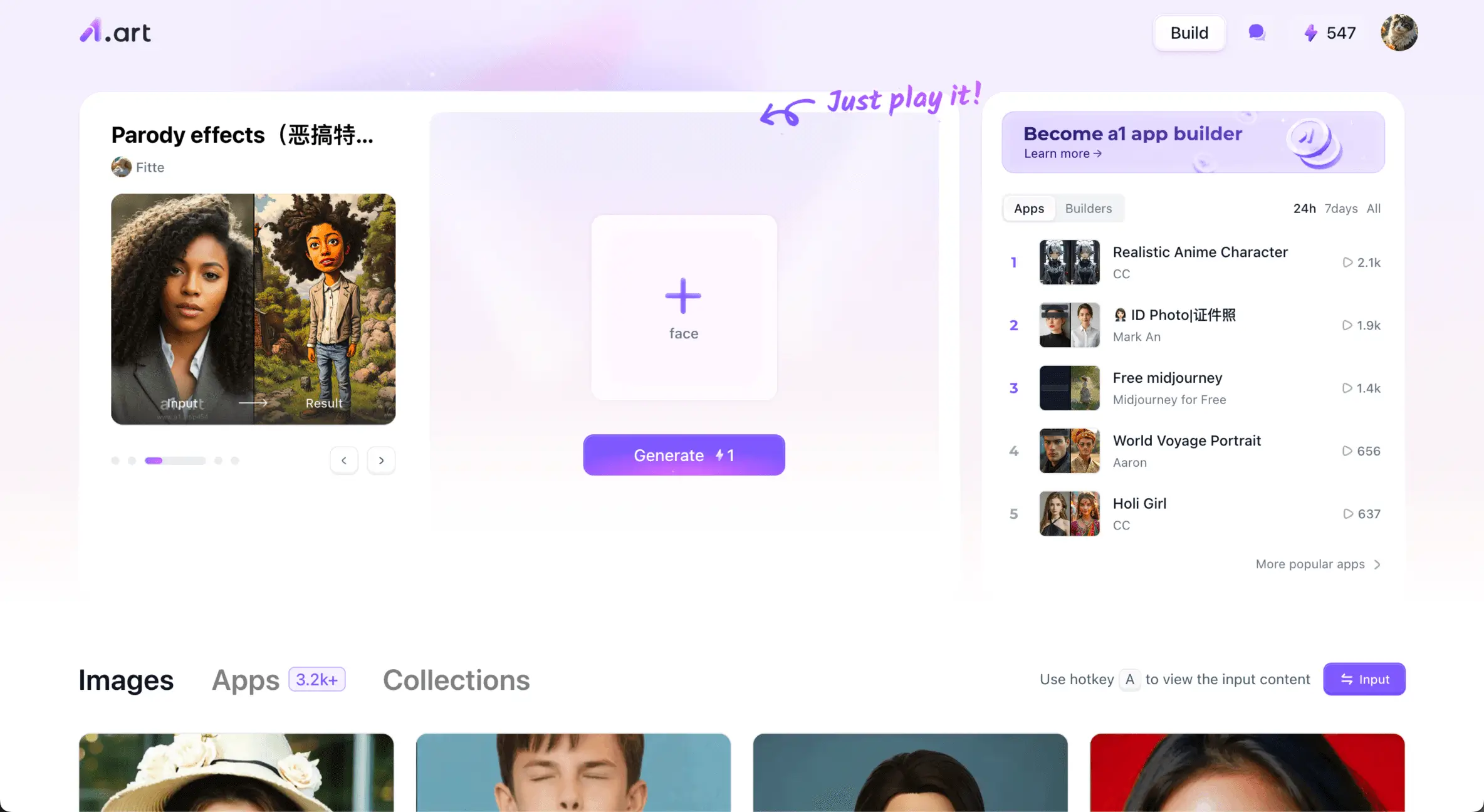
We have already integrated GPT Image 2.5 into A1.art and prepared a collection of carefully tuned prompt presets. Instead of starting with a blank prompt box, you can choose a popular filter, upload an image or enter a short idea, and start creating immediately.
The workflow is simple: choose a filter, add your image or prompt, and let A1.art handle the setup behind the scene. There is also a practical pricing advantage. Depending on the plan and image type, A1.art can cost up to less than the official equivalent.
GPT Image 2.5 is now live in A1 withready-made viral filter presets.👇

Recommended GPT Image 2.5 Filters on A1.art
1.Portrait and Personal Portrait Filters
Upload a portrait and explore different visual directions without rebuilding the prompt from scratch.
Try them for:
- Profile pictures
- Professional headshots
- Social-media portraits
- Editorial-style photos
- Character references
Explore portrait filters on A1.art👇

2.Product Image Filters
Product filters are useful when you want to place an existing product into new environments or create several visual directions for a campaign.
Try them for:
- E-commerce product scenes
- Lifestyle product images
- Packaging concepts
- Social-media advertisements
- Seasonal product campaigns
- Brand moodboards
Explore product image filters on A1.art👇
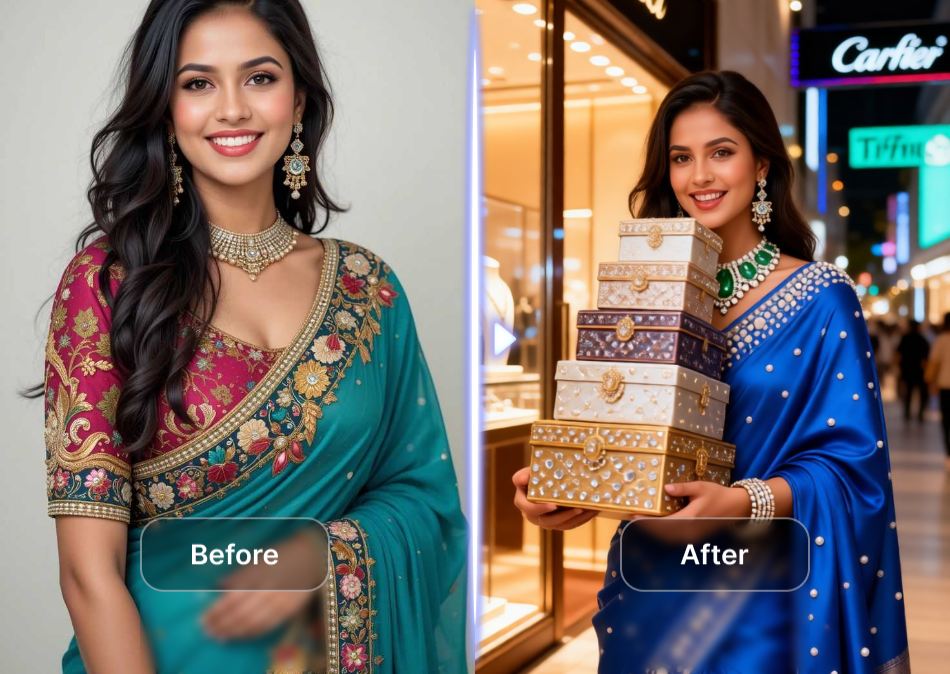
3.Poster and Flyer Filters
Poster filters are helpful when you already know the format you need but do not want to design the composition from a blank canvas.
Try them for:
- Event posters
- Promotional graphics
- Social-media announcements
- Restaurant promotions
- Workshop flyers
- Video covers

4.Digital Portrait and Character Filters
Digital portrait filters are a good fit for creators who want to explore stylized characters, avatars and consistent visual identities.
Try them for:
- Game characters
- Storyboard references
- AI video characters
- Digital avatars
- Stylized profile pictures
- Character concept sheets
Explore product image filters on A1.art👇

Why Use A1.art for This Comparison?
GPT Image 2.5 is more powerful, but access to a powerful model does not automatically make the creative process easier.
A1.art adds a layer of convenience around the model:
-
Curated filters for common image styles
-
Prompt presets for popular use cases
-
Image and text input
-
One-click style exploration
-
Daily free credits for trying different workflows
-
Image and video creation options in one place
If you simply want to create a good-looking result quickly, start with an A1.art filter.
GPT Image 2, GPT Image 2.0 and GPT Image 2.5: What Do the Names Mean?
The names are confusing because the consumer product and the API describe related things with different labels.
When people say GPT Image 2, they may mean:
-
The GPT Image 2 API model
-
ChatGPT Images 2.0
-
Whatever image system their current ChatGPT interface has enabled
GPT Image 2.5 is the newer generation. In ChatGPT it appears as ChatGPT Images 2.5; In the API it is split into two related model names:
-
gpt image 2.5 flare
-
gpt image 2.5 sunburst
They sit in the same family, but they are tuned for different priorities.
To keep the rest of this article readable, I use the names this way:
-
GPT Image 2: The previous GPT Image 2 or ChatGPT Images 2.0 generation.
-
GPT Image 2.5: The newer ChatGPT Images 2.5 experience and its model improvements.
-
Flare: The faster GPT Image 2.5 API option.
-
Sunburst: The precision oriented GPT Image 2.5 API option.
Keeping these labels separate prevents a lot of confusion when we talk about access, speed, price, testing and actual behavior.

What GPT Image 2 Can Already Do
GPT Image 2 is not a weak model waiting to be forgotten.
It can still create realistic images, illustrations, posters, product concepts and presentation visuals. It works from text and reference images, can put text inside an image, and is useful for both casual experiments and serious production drafts.
Typical GPT Image 2 jobs include:
-
Creating portraits
-
Generating product photographs
-
Turning a sketch or idea into a visual concept
-
Replacing or extending backgrounds
-
Creating social media graphics
-
Designing packaging concepts
-
Producing presentation visuals
-
Transforming an existing photograph into another style
-
Creating transparent assets
-
Exploring multiple creative directions

GPT Image 2 was already a substantial step up from earlier image systems. It followed detailed instructions more closely, understood real world scenes better and handled images with text and complex layouts more capably.
Its limitation is not the ability to make a good image. The trouble starts when you want a very small change and need the rest of the image to stay put.
Change only the shirt can still be interpreted as make me another version of the whole scene. The broad idea survives, while the face, pose, lighting or background details quietly move.
That is the thread running through this comparison.
The Real Difference Is Not Just Image Quality
The easiest comparison is to ask which first image looks better. It is also the one that tells you the least about a real project. Most image work looks more like this:
-
Generate a first draft.
-
Notice a problem.
-
Edit the problem.
-
Notice another problem.
-
Adjust the composition.
-
Add or remove an object.
-
Change the text.
-
Prepare different aspect ratios.
-
Approve the final asset.
The first image matters, but so does the chain of decisions that follows it.
GPT Image 2.5 is aimed at making that chain less fragile. OpenAI describes improvements in precision editing, reference image fidelity and multi turn consistency. In practical terms, it is more likely to keep the subject, composition, light and brand treatment while applying the new instruction.
That is a workflow improvement, not just a resolution bump.
A sharper first image is nice. A model that lets you finish the job without rebuilding it six times can save much more.

Precision Editing: Change One Thing and Leave the Rest Alone
Imagine you finally have a portrait you like. The only problem is the jacket color.
The instruction is simple:
| Change the jacket from beige to emerald green.
|
| Keep the person's face, hairstyle, pose, background, lighting, |
| shadows and composition unchanged. |
| Do not alter any other object. |
The ideal output changes the jacket and nothing else. A less controlled edit may also give you:
-
A different facial expression
-
A changed hairstyle
-
A new body position
-
Different background objects
-
Altered shadows
-
A new camera angle
-
A different jacket shape
-
A changed color palette
GPT Image 2.5 is designed to reduce that collateral damage. It is better at reading the request as a constrained edit instead of a request to redraw the entire scene.
That difference is useful when:
-
A product team wants to change packaging color but preserve the product.
-
A fashion creator wants to test outfits on the same person.
-
A real estate agent wants to stage a room without changing its layout.
-
A marketer wants to update one line of copy in a campaign visual.
-
A designer wants to remove one object without rebuilding the scene.
GPT Image 2.5 is still generative. It is not a Photoshop mask with a pixel lock. You can still see small changes around hair, reflections, edges and busy backgrounds.
The gain is reliability, not perfection.

A local edit test worth running
For a fair local edit test, use the same original image and the same prompt for both models.
Try these edits:
-
Change only clothing color.
-
Add a small facial detail.
-
Replace one product label.
-
Remove a background object.
-
Tidy a bed while preserving the room.
-
Add a costume to a pet.
-
Change only the sky.
-
Replace one object while keeping the lighting consistent.
Then inspect more than the edited area:
-
The edited area
-
The face
-
The subject's pose
-
The background
-
Shadows
-
Reflections
-
The image crop
-
Unrequested objects
Do not stop at Did the edit work? Ask the more useful question: What else moved?

Reference Images and Subject Fidelity
Reference image work is where a modern image model either becomes genuinely useful or quickly becomes exhausting.
You may want to carry the same:
-
Person
-
Pet
-
Product
-
Character
-
Room
-
Logo
-
Outfit
-
Object
in several different images.
The hard part is changing the context without losing the identity.
A person can slowly acquire a different face. A product can lose its proportions. A character's clothes can drift, and a logo can become less exact. One image may look fine; place six versions next to each other and the problem becomes obvious.
GPT Image 2.5 is intended to carry distinctive features more reliably across new scenes, styles and compositions.
For a person, evaluate:
-
Face shape
-
Eye spacing
-
Hair silhouette
-
Skin tone
-
Age appearance
-
Facial marks
-
Clothing details
-
Body proportions
For a product, evaluate:
-
Overall shape
-
Dimensions
-
Materials
-
Seams
-
Cap or handle
-
Label placement
-
Logo shape
-
Color
-
Reflections
The useful test is a series, not a single lucky image.
Use one reference image and create:
-
A studio portrait
-
A street photograph
-
A low light cinematic scene
-
A product advertisement
-
An illustration
-
A casual lifestyle image
Now compare the subject across the whole series, not just the image you like best.

Multi Turn Editing: What Happens After the Fifth Revision?
The first generation is usually where the real work begins.
A normal editing conversation might go like this:
-
Create a clean editorial portrait.
-
Change the jacket to dark green.
-
Replace the background with a warm studio wall.
-
Add a product in the person's hand.
-
Move the product slightly to the right.
-
Remove a plant from the background.
-
Add a headline in the upper left corner.
-
Crop the image for a 4:5 social media post.
At every step, the model has to remember what you already approved.
When it forgets, the conversation becomes a negotiation with your own previous work. You repeat instructions, recover an earlier image and try to rebuild the version you had five minutes ago.
GPT Image 2.5 is designed to carry earlier edits forward more reliably. The hope is simple: each new request should build on the image instead of quietly replacing it.
That can mean fewer:
-
Accidental reversions
-
Character drift
-
Product changes
-
Background redesign
-
Quality loss
-
Repeated prompting
-
Manual reconstruction
The right test is not Does the final image look good? It is Was every step usable enough to get there?

The 150 Frame Cube Test
A rotating cube is a revealing consistency test because tiny geometric changes become obvious when the frames are played together. Generate one frame at a time and the cube may quietly change its:
-
Width
-
Height
-
Perspective
-
Edge length
-
Surface markings
-
Lighting
-
Position
-
Scale
Play the frames in sequence and those tiny changes turn into jitter, wobble or visible deformation.
A steadier model should change the cube's viewpoint while keeping the cube itself recognizable.
This does not prove that GPT Image 2.5 is a video model. It is a visual stress test for repeated image generation and object consistency.

Image Quality: Lighting, Texture and Detail
OpenAI presents GPT Image 2.5 as a fidelity upgrade.
The areas OpenAI calls out include:
-
Sharper details
-
More natural lighting
-
Richer textures
-
Better reference subject preservation
-
Stronger style adherence
-
More coherent complex layouts
The difference may be most visible in photographs containing:
-
Skin
-
Hair
-
Fabric
-
Glass
-
Metal
-
Wood
-
Water
-
Fine shadows
-
Reflections
-
Mixed artificial and natural lighting
For a simple icon or flat color illustration, the difference may be hard to see. There simply is not much texture or light for either model to get wrong.

A useful test needs both easy and difficult prompts. Good categories include:
-
Photorealistic portrait
-
Reflective product photograph
-
Interior scene
-
Outdoor street scene
-
Low light image
-
Close up fabric image
-
Illustration style transfer
-
Complex infographic
-
Transparent product cutout
Compare the original files as well as enlarged crops. A compressed web preview can erase the very differences you are trying to inspect.
Text Rendering and Complex Layouts
GPT Image 2 already made progress with text inside images. GPT Image 2.5 is intended to follow complex visual instructions and layouts more consistently.
Text deserves its own test. A beautiful image can still contain a wrong date or a broken URL.
A poster can look excellent while containing:
-
A misspelled title
-
An incorrect date
-
A broken URL
-
A changed product name
-
A missing punctuation mark
-
The wrong number
-
A malformed Chinese character
-
An incorrect line break
This matters for:
-
Posters
-
Menus
-
Tickets
-
Packaging
-
Book covers
-
Maps
-
Advertisements
-
Presentation slides
-
Infographics
Use a controlled prompt with exact text:
Create a clean event poster.
Exact text:
| North Star Product Workshop
September 24, 2026
Shanghai
10:00 AM 4:30 PM
|
| Register at example.com/workshop |
|
Keep every letter, number, punctuation mark and line break accurate. |
Repeat the same test in English and Chinese.
For commercial, legal, financial or medical copy, treat the generated text as a draft. Proofread it and replace it in a conventional design tool when accuracy matters.
Transparent Backgrounds
A transparent image is useful for:
-
Product cutouts
-
Stickers
-
Logos
-
Icons
-
Website elements
-
Presentation assets
-
Game assets
-
Merchandise designs
-
Ecommerce catalogs
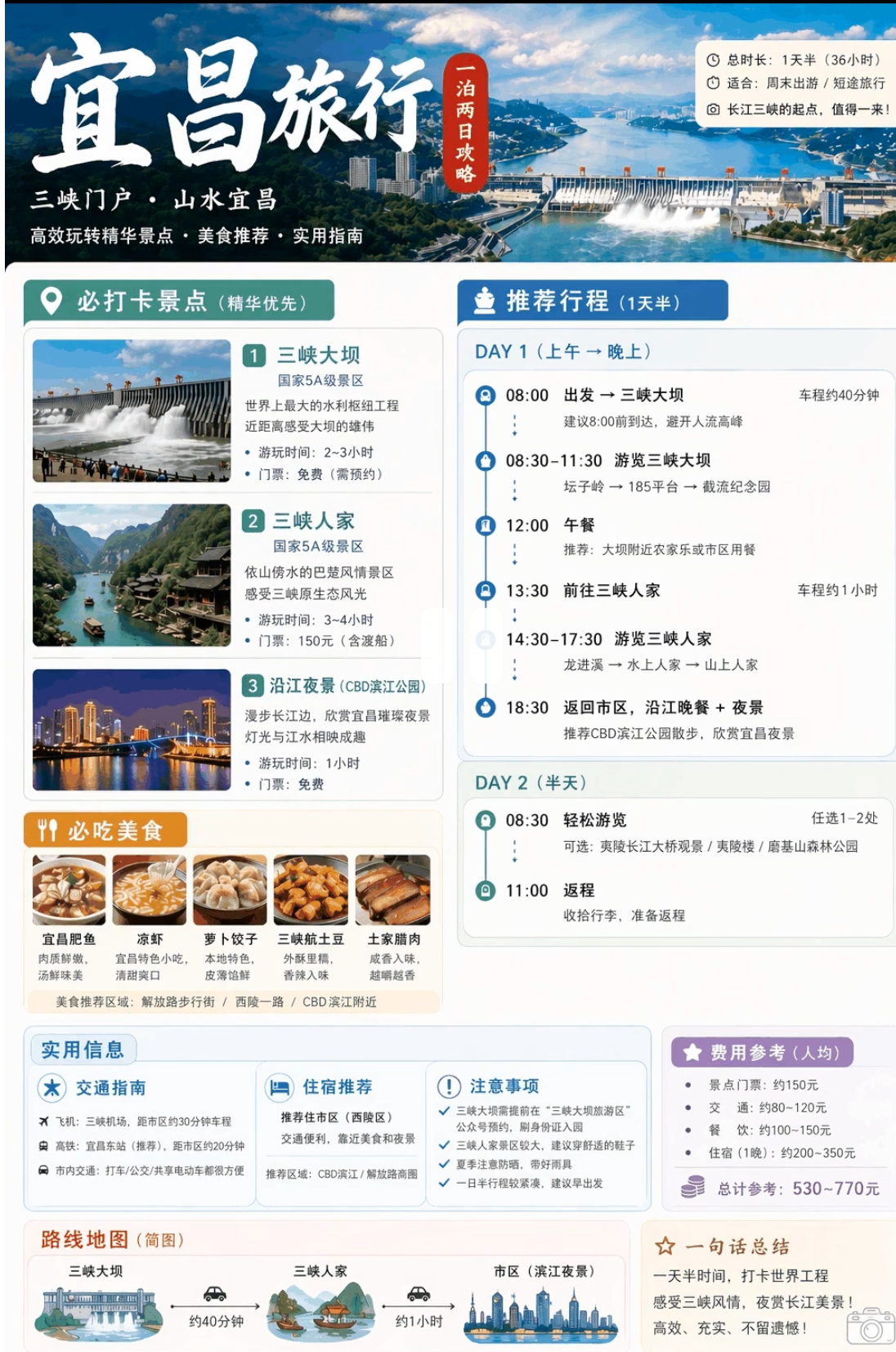
GPT Image 2.5 is described as better at complex layouts that include transparent backgrounds.

Speed: Up to 50% Lower Latency
OpenAI says GPT Image 2.5 can reduce image generation latency by up to 50% compared with Images 2.0.
That matters because image work rarely ends after one attempt. When every draft arrives sooner, exploring and revising feels much less heavy.
Lower latency is valuable for:
-
Interactive applications
-
Batch generation
-
Product image pipelines
-
Social content production
-
Rapid prototyping
-
Visual search
-
Creative exploration
-
Repeated editing
Up to 50% is an upper bound claim, not a promise that every request will take half the time.
Timing can vary with:
-
Image dimensions
-
Quality settings
-
Prompt complexity
-
Number of input images
-
Model variant
-
Server load
-
Queue time
-
Safety checks
-
Network conditions
-
Whether the request is generation or editing
Run multiple requests with identical settings and report the median. The fastest result makes a good screenshot and a poor benchmark.
For a real team, the more useful metric may be:
Time to approve asset
A model that generates quickly but needs many extra revisions may still be slower from the team's point of view.
Sketch: Draw the Structure You Cannot Easily Describe
GPT Image 2.5 introduces Sketch in ChatGPT.
You can draw a rough layout and add a text description. The sketch gives the model a visual guide for the final composition.
That helps when words alone cannot clearly show:
-
Object placement
-
Relative scale
-
Camera position
-
Room layout
-
Character pose
-
Product location
-
Direction of movement
-
Basic composition
The drawing does not need to look good. Its job is to communicate structure.
A rough room sketch can show that the sofa sits against the left wall, the table is in front of it and the window is behind the subject. The prompt can handle materials, color, lighting and style.

Example Sketch prompt
| Use my sketch as the exact compositional guide.
|
|
Turn it into a warm, photorealistic interior design render. |
| Keep the sofa, table, window and floor lamp in the same relative positions.
|
| Use light oak flooring, off white walls, soft afternoon sunlight and realistic shadows. |
| Do not add extra furniture. |
Sketch is strongest when you pair it with:
-
A rough drawing
-
A reference image
-
A style description
-
Materials
-
Lighting
-
Output ratio
-
Clear preservation instructions
Templates: A Better Starting Point for Beginners
Templates give you a known format instead of sending you into an empty prompt box.
Common template categories may include:
-
Posters
-
Flyers
-
Product photos
-
Merch
-
Book covers
-
App mockups
-
Packaging
-
Advertisements
-
Social media graphics
-
Infographics
A template does not guarantee a professional result. It gives you somewhere sensible to start.
A template can help define:
-
Format
-
Visual hierarchy
-
Content fields
-
Composition
-
Design direction
-
Expected output
That is useful when you know what you want to make but do not know how to describe every design decision.
The output can still have:
-
Weak hierarchy
-
Too much text
-
Poor contrast
-
Generic styling
-
Inconsistent spacing
-
Incorrect brand treatment
Treat the output as a first draft, not a finished layout.

Readers who want to explore additional image generation workflows can also visit A1.art's AI image generation guide.
Prompt Sharing: From Finished Image to Reusable Recipe
GPT Image 2.5 lets you share an image together with the prompt that created it.
That makes sharing more useful. You are no longer sharing only the finished picture; you are sharing the recipe behind it.
A reusable prompt should separate:
-
Fixed elements
-
Variable elements
-
Style
-
Composition
-
Lighting
-
Materials
-
Transformation
-
Exclusions
For example:
Keep the subject's face, pose and body proportions unchanged.

Changeable elements:
| decade: 1980s clothing: vintage evening wear background: |
| softly lit studio color palette: warm film tones texture: |
subtle anglog grain |
That structure makes it easier for someone else to try the same idea with their own photo and details.
Prompt sharing still needs a privacy check. Remove private details and make sure you have permission to share any reference image.
GPT Image 2.5 Flare vs Sunburst
The GPT Image 2.5 API is split into two models with different priorities.
GPT Image 2.5 Flare
Flare is the practical default for most applications.
It is a strong candidate for:
-
Social content tools
-
Creator platforms
-
Product experiences
-
Visual search
-
Rapid prototyping
-
High volume image generation
-
Interactive applications
-
Frequent image editing
Flare makes sense when a user is waiting in an interface or when your system needs to process a large number of images.
GPT Image 2.5 Sunburst
Sunburst is aimed at premium workflows where tighter control is worth a longer wait.
It is a strong candidate for:
-
Campaign creative
-
Polished product imagery
-
Detailed editing
-
Premium marketing assets
-
High value production workflows
-
Work where repeated regeneration is expensive
Sunburst may take longer per generation. That can still be the efficient choice if it reaches approval in fewer attempts.
For a production system, record the model ID, prompt, reference image, dimensions, latency, revision count and final approval status. Otherwise, you will not know why one workflow actually worked better.
| Requirement | Recommended option |
| Interactive response | Flare |
| High volume generation | Flare |
| Social content pipeline | Flare |
| Rapid visual prototypes | Flare |
| Final campaign artwork | Sunburst |
| Premium product imagery | Sunburst |
| Detailed multi turn edits | Sunburst |
| Baseline comparison | GPT Image 2 and Flare |
For production systems, record the model identifier, prompt, reference image, dimensions, latency, number of revisions and final approval status.

GPT Image 2.5 for Different Types of Users
Beginners
GPT Image 2.5 is the easier starting point because Sketch and templates take some pressure off the prompt box.
A simple workflow looks like this:
-
Choose a template or open Sketch.
-
Upload a reference image if needed.
-
Describe the desired result.
-
State what must remain unchanged.
-
Make one focused edit at a time.
-
Review before requesting the next change.
Designers
GPT Image 2.5 is most useful during ideation and revision.
Good uses include:
-
Moodboards
-
Art direction
-
Background exploration
-
Product concepts
-
Editorial illustrations
-
Packaging ideas
-
Presentation visuals
-
Style exploration
-
Early compositing
Traditional design tools are still better for:
-
Exact typography
-
Vector editing
-
Layer control
-
Precise masks
-
Brand systems
-
Print production
-
Final technical artwork
Marketers
GPT Image 2.5 can speed up campaign exploration.
Possible uses include:
-
Social media variations
-
Seasonal creative
-
Lifestyle scenes
-
Product background combinations
-
Localization concepts
-
Ad testing
-
Cover images
-
Thumbnail variations
Review every commercial asset for:
-
Logo accuracy
-
Product accuracy
-
Legal copy
-
Claims
-
Disclaimers
-
Brand colors
-
Accessibility requirements
Ecommerce teams
GPT Image 2.5 can help create:
-
Lifestyle product scenes
-
Seasonal backgrounds
-
Room staging
-
Catalog variations
-
Merchandising concepts
-
Product context images
Keep the original product photograph beside the generated version. If the model changes the physical product, the image may mislead customers.
Developers
Use Flare as the first candidate for interactive and high volume systems. Test Sunburst when the output is more valuable or needs more precise revision.
At minimum, log:
-
Model identifier
-
Prompt
-
Input image hash
-
Output dimensions
-
Generation time
-
Revision number
-
Safety result
-
Human approval result

How to Run a Fair Comparison
A fair GPT Image 2.5 vs GPT Image 2 test controls as many variables as possible.
Use:
-
The same prompt
-
The same reference image
-
The same image dimensions
-
The same aspect ratio
-
The same quality setting
-
The same number of attempts
-
The same editing sequence
-
The same evaluation criteria
Score each dimension separately. A single blended score hides useful differences.
| Dimension | Question |
| Instruction following | Did the model satisfy the prompt? |
| Preservation | Did unrequested details stay unchanged? |
| Subject fidelity | Does the person or product remain recognizable? |
| Composition | Are positions and spatial relationships correct? |
| Text accuracy | Are words, numbers and punctuation correct? |
| Visual quality | Are light, texture and detail convincing? |
| Consistency | Does the image remain stable across revisions? |
| Latency | How long did the complete request take? |
| Efficiency | How many attempts were needed for approval? |
| Risk | Did the output introduce misleading or unsafe content? |
Use several examples in every category. One successful image is not enough to describe a model's general behavior.
Report two outcomes separately:
-
Best single image
-
Time to approve final asset

GPT Image 2.5 is more capable, but it is not a guarantee of perfect results.
It may still struggle with:
-
Very small text
-
Dense tables
-
Exact measurements
-
Complex diagrams
-
Unusual fonts
-
Repeated small objects
-
Highly specific logos
-
Contradictory instructions
-
Low quality references
-
Partially hidden faces
-
Transparent edges
-
Exact product geometry
-
Very long editing chains
It does not guarantee:
-
Pixel identical preservation
-
Perfect spelling
-
Exact logo reproduction
-
Factual accuracy
-
Regulatory compliance
-
Commercial clearance
-
Identical access across every interface
-
Identical behavior for every prompt
A useful comparison shows these limits instead of hiding them.
Good failure cases to publish include:
-
Both models fail
-
GPT Image 2 succeeds and GPT Image 2.5 is less suitable
-
Text looks attractive but contains an error
-
A product's physical shape changes
-
A face drifts after several edits
-
A transparent image contains a white matte
-
A background object returns after being removed
Safety and Provenance
More realistic image generation creates useful applications and makes responsible use more important.
OpenAI's image safety materials describe checks at several stages, including prompts, input images and generated outputs. The safety documentation also discusses the risks associated with realistic synthetic images of real people, political events and sensitive situations.
OpenAI states that its image systems use C2PA metadata and invisible watermarking to help identify content created by its products.
Users should still:
-
Obtain consent before editing a person's likeness
-
Avoid deceptive political or news imagery
-
Label synthetic media when context requires it
-
Verify medical, product and technical visuals
-
Preserve original source files
-
Keep an edit history
-
Respect copyright, trademarks and publicity rights
-
Avoid using generated images as evidence
A photorealistic image is not evidence that the depicted event happened.
GPT Image 2.5 vs Other Image Models
Many readers will also ask how GPT Image 2.5 compares with Midjourney, Gemini, Grok, Adobe Firefly, Flux and other image tools.
No single ranking answers every question because different tools optimize for different outcomes.
Some prioritize:
-
Artistic style
-
Photorealism
-
Prompt literalness
-
Typography
-
Speed
-
Character consistency
-
Video generation
-
Traditional canvas controls
-
Open model access
-
Commercial integrations
GPT Image 2.5's clearest strength is the combination of conversational editing, reference image transformation, multi turn consistency, Sketch, templates and an integrated OpenAI workflow.
That does not mean it wins every artistic contest. Another model may give you a more dramatic style or a more appealing interpretation for a particular prompt.
The more useful question is:
Which tool gets your complete workflow from idea to approved asset with the fewest compromises?
Readers looking for additional image generation options can explore A1.art's ChatGPT image templates and A1.art's GPT image and video collection.
Should You Switch From GPT Image 2 to GPT Image 2.5?
GPT Image 2.5 deserves a serious test if you:
-
Edit images repeatedly
-
Need to preserve people or products
-
Create several versions of one asset
-
Use reference images
-
Need lower latency
-
Generate transparent product assets
-
Spend too much time correcting unintended changes
-
Want a faster path from draft to approval
GPT Image 2 may still be the right choice if:
-
Your current pipeline is stable
-
You need a baseline for comparison
-
You prefer its creative interpretation
-
You rarely perform multiple edits
-
You want a second candidate output
-
Your existing prompts are tuned for its behavior
Do not judge migration by the first image alone. Compare:
-
Cost per approved asset
-
Number of attempts
-
Time to approval
-
Human correction time
-
Retry rate
-
Brand consistency
-
Review workload
-
User satisfaction
The newer model is valuable when it reduces the total effort needed to finish the work.
Practical Prompt Patterns
Precise local edit
| Edit only the product label.
Replace the existing label with:
|
| ORCHARD TEA
Jasmine Green Tea
330 ml
Preserve the bottle shape, |
| cap, reflections, table, background, lighting, camera angle and composition. |
| Do not change any other object. |
Reference subject consistency
| Use the uploaded portrait as the identity reference.
|
| Create the same person in three scenes: |
| 1. A bright editorial studio
2. A rainy Tokyo street
|
| 3. A warm home office
Preserve facial structure, eye shape, hairstyle, |
| skin tone and distinctive features across all three images. |
| Change only the clothing, environment and lighting appropriate to each scene. |
Transparent product asset
| Create a high resolution product cutout of the uploaded shoe.
|
| Use a fully transparent background with a real alpha channel. |
| Do not use white, gray, green or checkerboard backgrounds.
|
| Preserve the exact shoe shape, stitching, sole pattern and logo. |
Multi turn preservation
| Apply only the change described in this message.
|
|
Keep all previously approved elements unchanged, including: |
| subject identity
pose
clothing unless specifically mentioned
camera angle
composition |
| background structure
lighting direction
color palette
existing text |
| Do not restart the design from scratch. |
Final Verdict
GPT Image 2.5 is best understood as a control and workflow upgrade to GPT Image 2.
Its most meaningful improvement is the ability to preserve approved content while applying a targeted change. That matters because professional image work rarely ends after one generation.
GPT Image 2.5 is especially compelling for:
-
Iterative editing
-
Reference image transformations
-
Character consistency
-
Product consistency
-
High volume generation
-
Transparent background assets
-
Sketch guided composition
-
Template based design
-
Conversational creative work
-
API applications with different speed and precision requirements
GPT Image 2 remains a capable model and a useful baseline. It may still deliver a preferred result for a particular image or style.
The fairest conclusion is not that GPT Image 2.5 wins every possible comparison. It is this:
GPT Image 2.5 makes image creation more controllable, iterative and practical, especially when you need to change one thing without rebuilding everything else.
For most new applications, Flare is the sensible starting point when speed and volume matter. Sunburst is the stronger candidate for premium creative work and detailed editing. Existing GPT Image 2 users should decide after testing their own prompts, images and approval criteria.

Frequently Asked Questions
Is GPT Image 2.5 better than GPT Image 2?
For many editing and iterative workflows, yes. GPT Image 2.5 is designed to improve local editing, reference image fidelity, multi turn consistency, speed and creative controls. It is not guaranteed to produce a preferred result for every single prompt.
Is GPT Image 2.5 faster?
OpenAI says GPT Image 2.5 can reduce image generation latency by up to 50% compared with Images 2.0. Actual performance depends on the model variant, prompt, image size, queue load and other conditions.
Can GPT Image 2.5 preserve a person's face?
It is designed to preserve reference subjects more reliably, but no image model guarantees perfect identity preservation across every scene.
Can GPT Image 2.5 change only one part of an image?
It is better at localized edits than GPT Image 2. The result can still contain small generative changes, especially around complex edges, reflections and backgrounds.
Can GPT Image 2.5 generate accurate Chinese text?
It may produce improved text, but Chinese characters, numbers, dates and dense layouts should still be checked manually.
Can GPT Image 2.5 create a transparent PNG?
It has improved support for transparent background workflows. Verify the actual alpha channel instead of relying on the preview.
What is the difference between Flare and Sunburst?
Flare is optimized for speed and high volume use. Sunburst is intended for more precise, premium creative workflows.
Does GPT Image 2.5 replace Photoshop?
No. It can accelerate ideation, editing and compositing, but traditional design tools remain better for exact typography, vector work, masking, layers and final production files.
Is GPT Image 2 still worth using?
Yes. GPT Image 2 remains a capable general purpose model and a valuable baseline. It can also produce a creative result that you prefer for a specific prompt.
Is GPT Image 2.5 the best image model for every task?
No. Model choice depends on the task. GPT Image 2.5's strongest advantage is its combination of editing control, reference fidelity, multi turn consistency and integrated creative tools.
Should I migrate from GPT Image 2?
Run a controlled test with your own content. Migration is most compelling when GPT Image 2.5 reduces revisions, preserves approved details and shortens the time to a final usable asset.
Can GPT Image 2.5 images be used commercially?
Commercial use depends on the applicable product terms, input image rights, jurisdiction, brand obligations and the specific content. Every asset should be reviewed before publication.
Are GPT Image 2.5 images proof of real events?
No. A photorealistic generated image does not establish that the depicted event, person or location is real.
Read more
- GPT Image 2.5: New Features and Alternatives
- Best Hot AI Video Generator Apps to Create New Videos from Photos
- How to Create the Viral Radha Rani AI Photo Trend in 2026
- 15+ Ganesha AI Video Prompts for Ganesh Chaturthi Reels in 2026
- How to Get AI Photos of Yourself: An Easy Step-by-Step Guide
- 20+ Ganesh Chaturthi AI Prompts for Festive & Devotional Photos in 2026
- Da Nang Festival 2026: Ultimate Guide to Dates & Events
- Unlock 20+ Onam AI Prompts for Traditional Kerala Photos in 2026
- Best Prompt Hero AI Alternatives for AI Prompts and Image Generation
- How to Create Childhood vs Present AI Photo?
Written by

a1.art
Published on
Sep 9, 2026
Share article


