

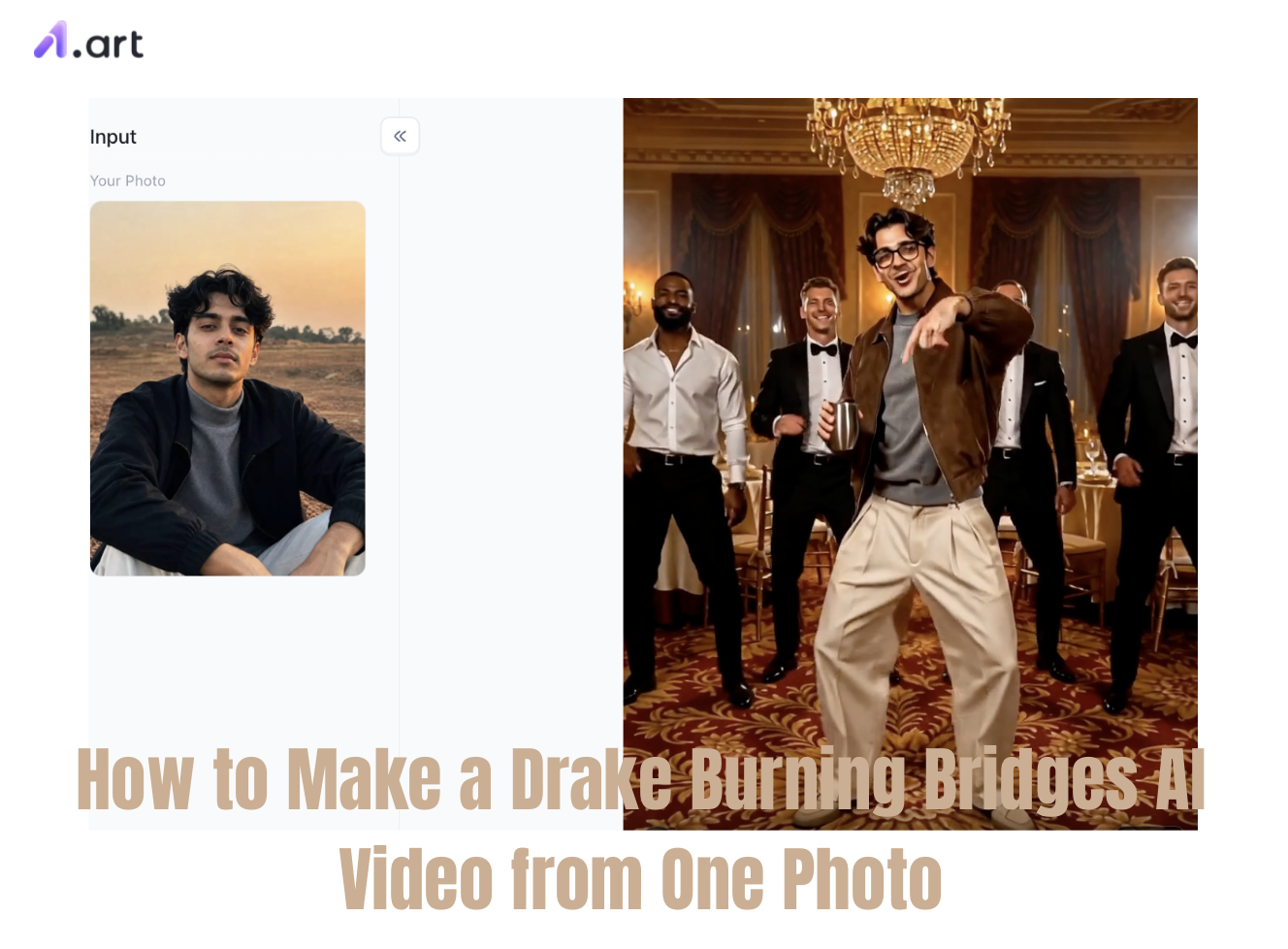
You’ve definitely seen it all over TikTok, Instagram Reels and YouTube Shorts: a cozy private room lit by chandeliers, a packed crowd, someone holding up a silver cup. There’s that famous “Where she at?” bit,covering one eye with a hand while rapping along to the beat. This viral Drake Burning Bridges AI trend is blowing up everywhere on social media.
But when you try to make the video yourself, things fall apart fast. Most‑AI tools give wonky faces, messed‑up hands, blurry backgrounds and choppy movement. All that main‑character vibe just gets ruined.
Lots of people run into these fake‑looking, low‑quality results. Making smooth AI video from just one photo needs solid motion tracking, consistent character looks and sharp rendering.
Thankfully, there’s an easy, powerful fix. This step‑by‑step guide shows you how to create your own Drake Burning Bridges AI video from a single photo with top‑tier AI tools. Whether you want to feature yourself, a friend or a custom virtual avatar in that party scene, you’ll get all the ready‑to‑use templates, prompts and pro settings right here.
What Is the Drake Burning Bridges AI Video Trend?
This Drake Burning Bridges AI trend started with fan‑made remixes. Creators drop custom characters into that gritty, hand‑shot music‑video vibe. Instead of shooting real footage, they use image‑to‑video AI to swap out the original artist for basically any face they want.
Every good Burning Bridges clip has these must‑have parts:
-
Vibe: A warm, chandelier‑lit VIP lounge with dark wood, full of party‑goers in the background
-
Iconic prop: That silver cup or cocktail shaker held through the whole verse
-
Signature move: The famous “Where she at?” bit,hand over your eyes, keeping your expression intact
-
Camera look: 85mm handheld style, soft blurry background, natural motion blur and warm cinematic lighting
Start your art journey with a1.art.
The template already handles the scene, movements and attitude. All you need is one sharp portrait photo, and you can make your own ready‑to‑go viral clip.
Double-click the image to instantly generate your own Drake "Burning Bridges" AI video⬇️
Step-by-Step Guide: How to Make a Drake Burning Bridges AI Video
Creating your own video does not require complex video editing skills or expensive GPU hardware. By using a dedicated burning bridges ai video template, you can generate a social-ready video in just a few minutes.
Step 1: Prepare Your Source Photo
For realistic‑looking faces and to stop your character’s features from changing mid‑clip, pick a good source photo.Go for a clear front‑on or slightly angled portrait with even lighting. Make sure the face and upper body are fully in view. Stay away from photos with heavy motion blur, deep shadows, or dark sunglasses covering the eyes.
Step 2: Choose Your AI Generation Platform
Meet a1.art, your go‑to AI creative platform. When you’re making that viral Drake Burning Bridges clip from one photo, picking the right tool makes all the difference,it’s either slick movie‑style footage or janky glitchy messes. Lots of generic AI video tools fall short, but a1.art is an all‑in‑one creative hub built for social media trends, custom avatars and photo‑to‑video work.
Unlike regular generators that mess up faces, spawn extra fingers and flicker during hand movements, a1.art keeps faces consistent and nails cinematic lighting. You can turn a single still photo into smooth, sharp animated video easily. Whether you’re joining TikTok viral trends or building snappy short clips for work, its simple web interface gives you ready‑made templates, custom motion controls and fast cloud rendering.
Step 3: Register your own a1.art account
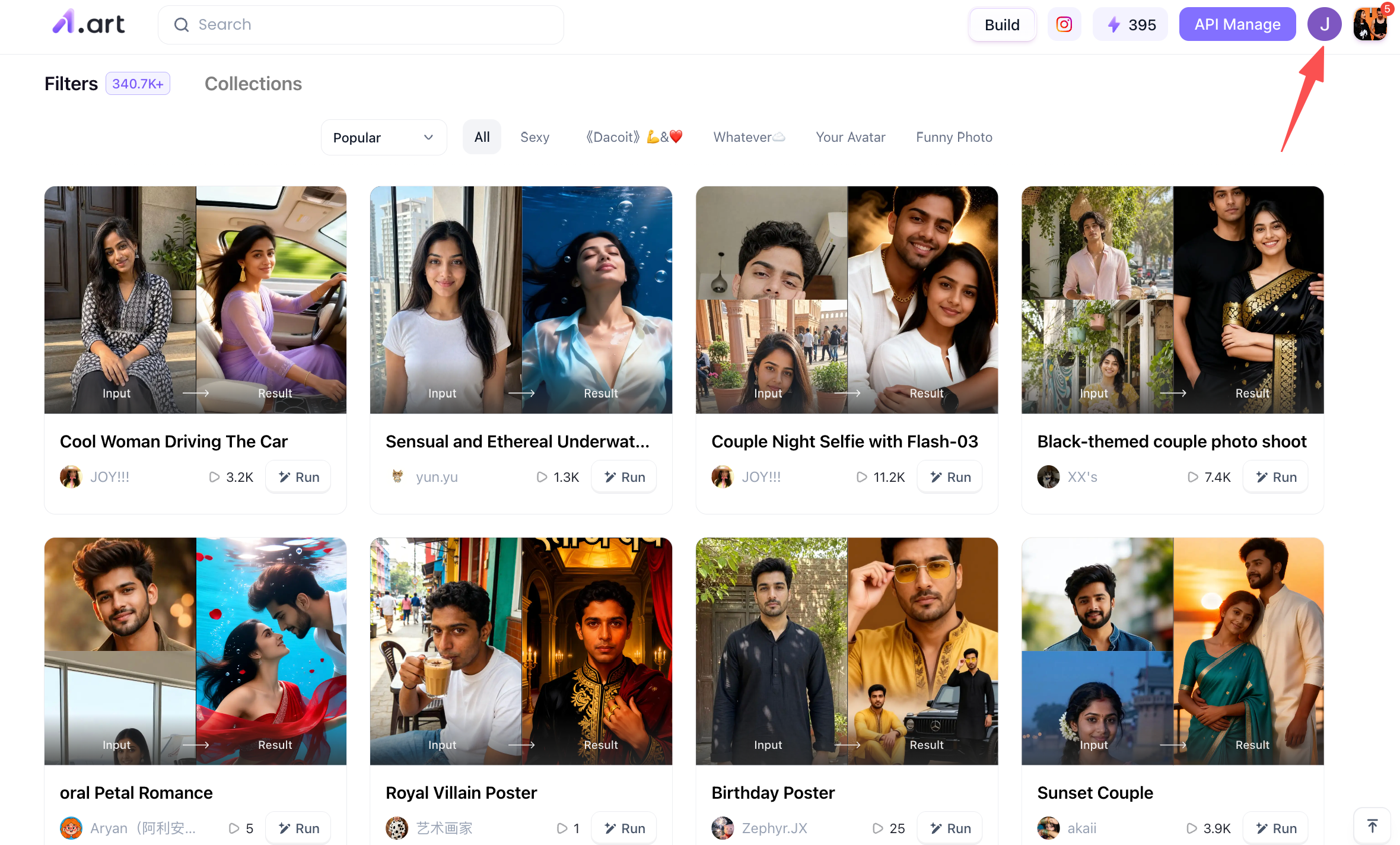
To get started with a1.art, you first need to create an account, as this determines whether you can go on to generate the "Drake Burning Bridges" AI video. The registration process is simple: just open a1.art, click on the profile icon in the top-right corner, and follow the on-screen instructions.
Step 4: Find the "Drake Burning Bridges" AI video template filter you like
You can search for relevant keywords,such as "Drake Burning Bridges AI Video",on the a1.art page; the system will then suggest the corresponding video filters, allowing you to create your video using a ready-made filter.
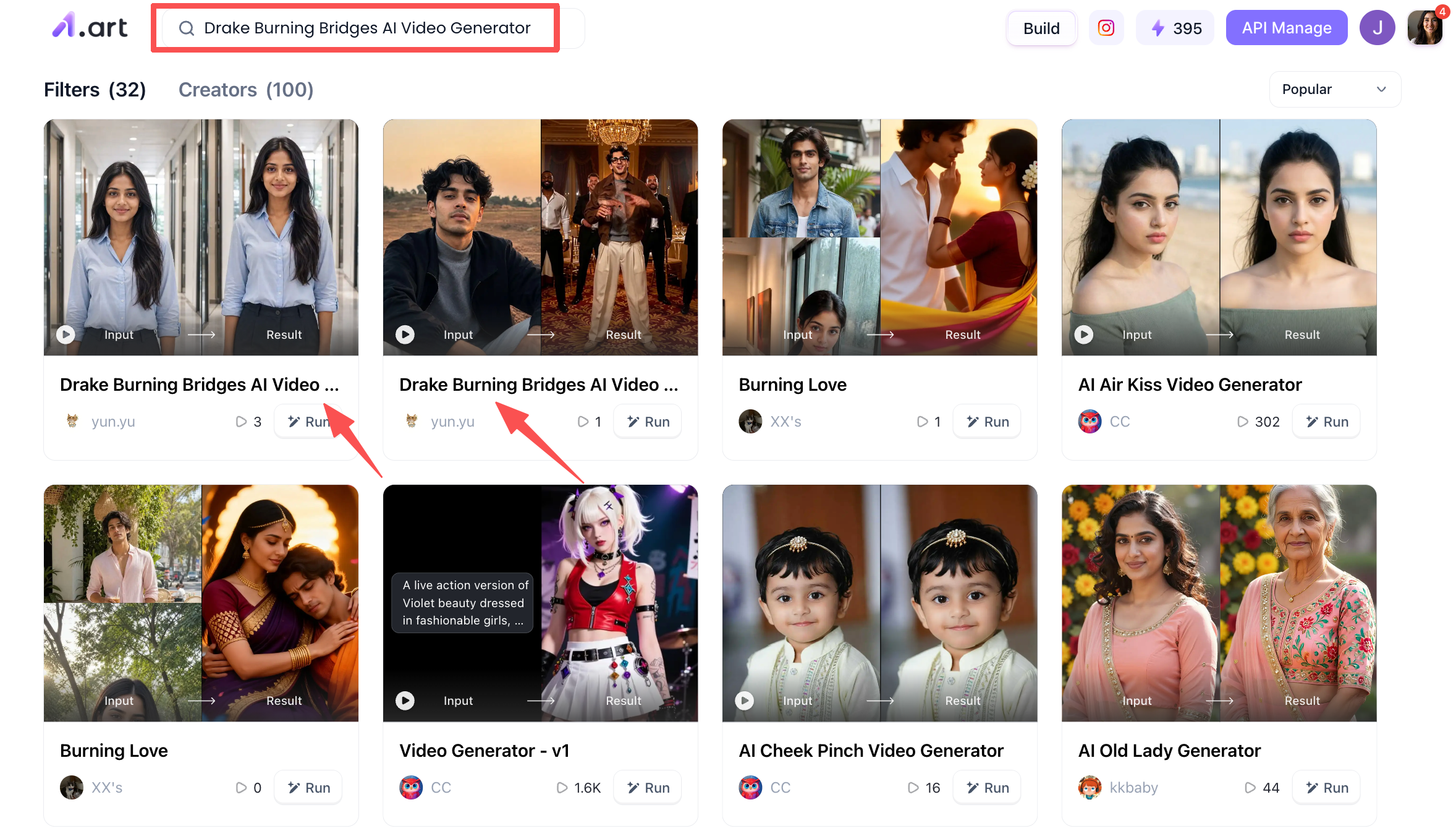
Step 5: Start creating the "Drake Burning Bridges" AI video
Taking the "Drake Burning Bridges" AI video filter as an example: you will see the filter's name at the top, while the bottom-left corner displays creations made by other users using this filter for your reference. On the right is the area where you upload your photo,simply upload the image prepared in Step 1 and tap the "Generate" button at the bottom; the system will then automatically generate your "Drake Burning Bridges" AI video in the background. This process takes approximately 3 to 4 minutes.
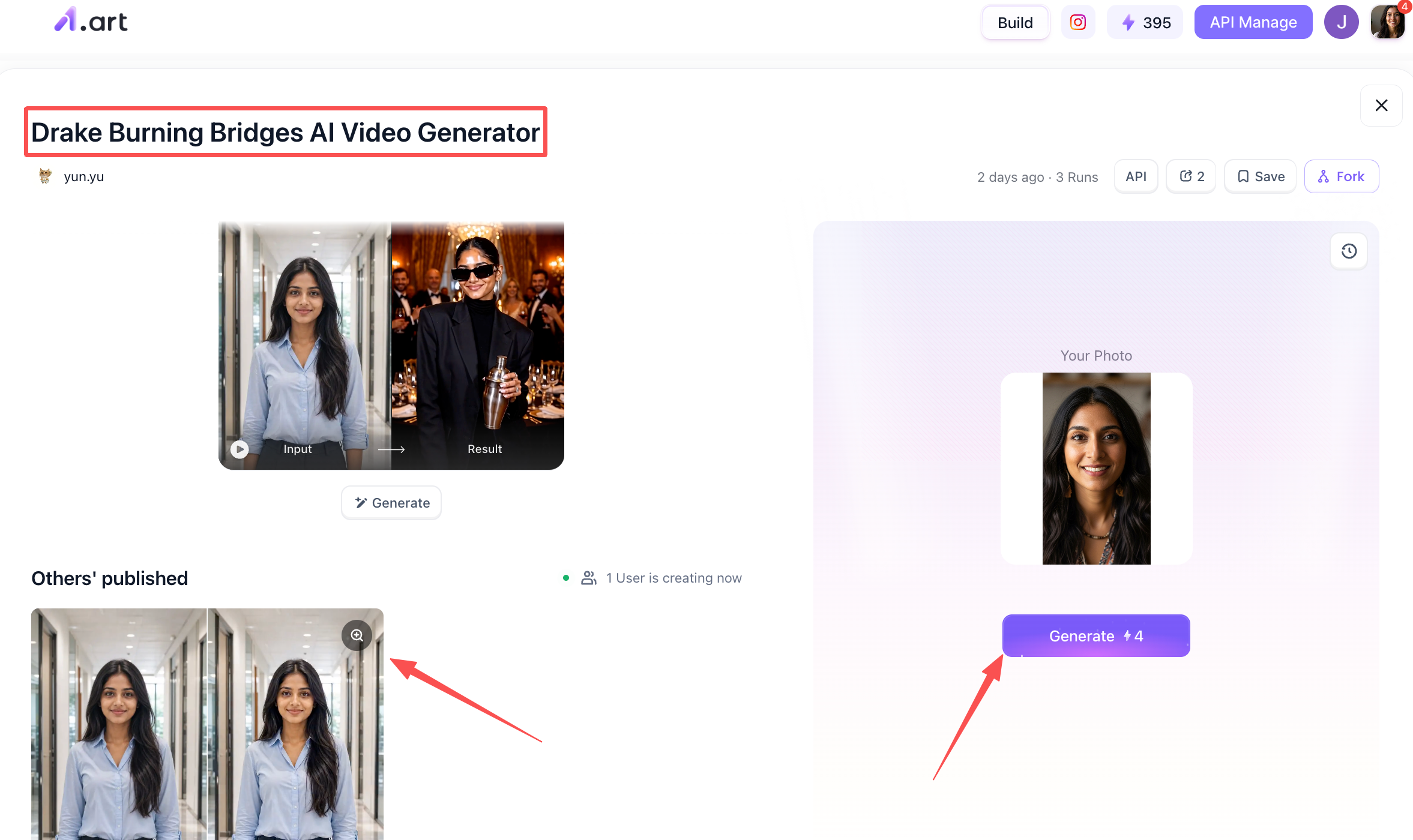
Step 6: Handling your completed "Drake Burning Bridges" AI video
Once the a1.art backend has finished processing your "Drake Burning Bridges" AI video, you can choose to either download it or publish it to the a1.art community.
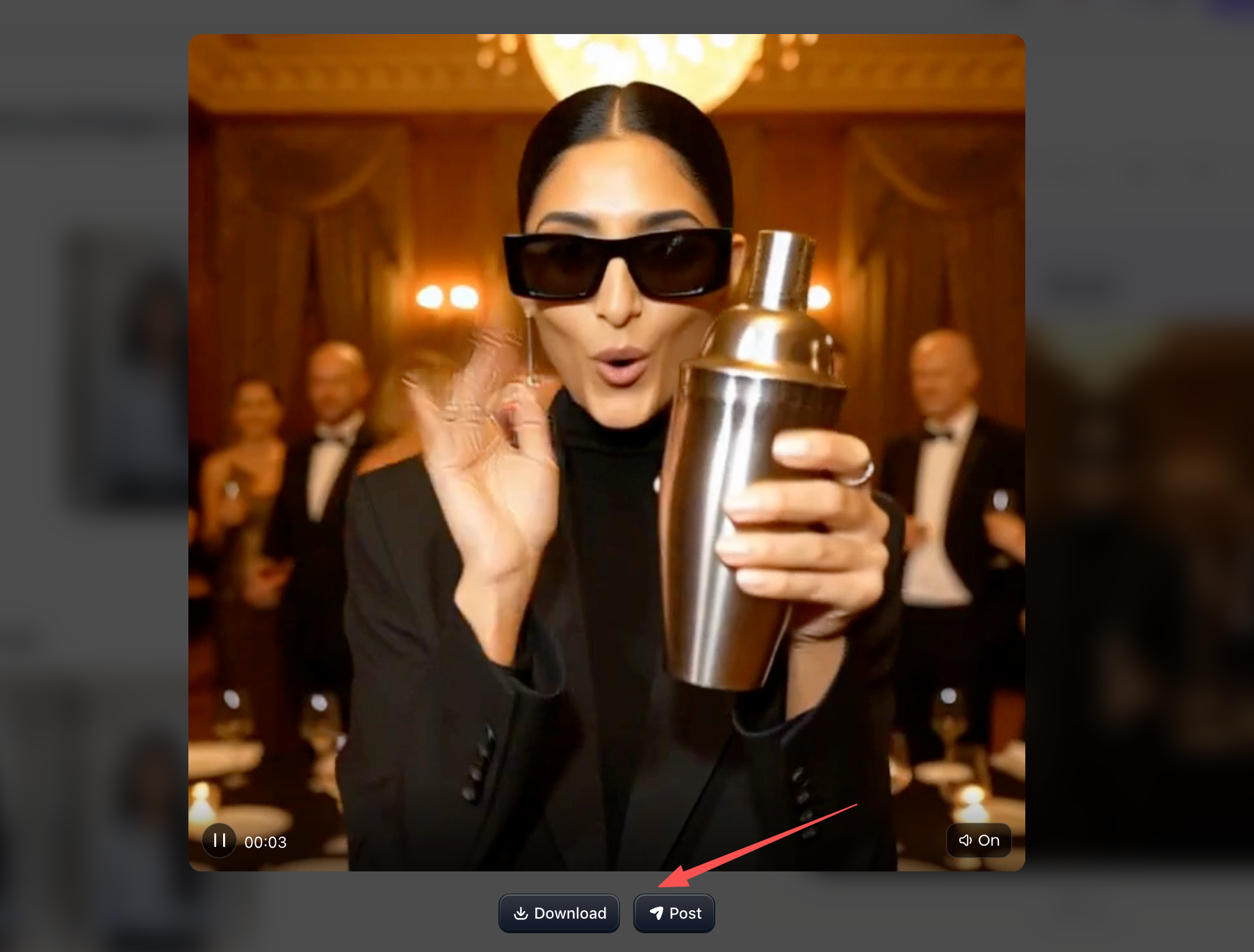
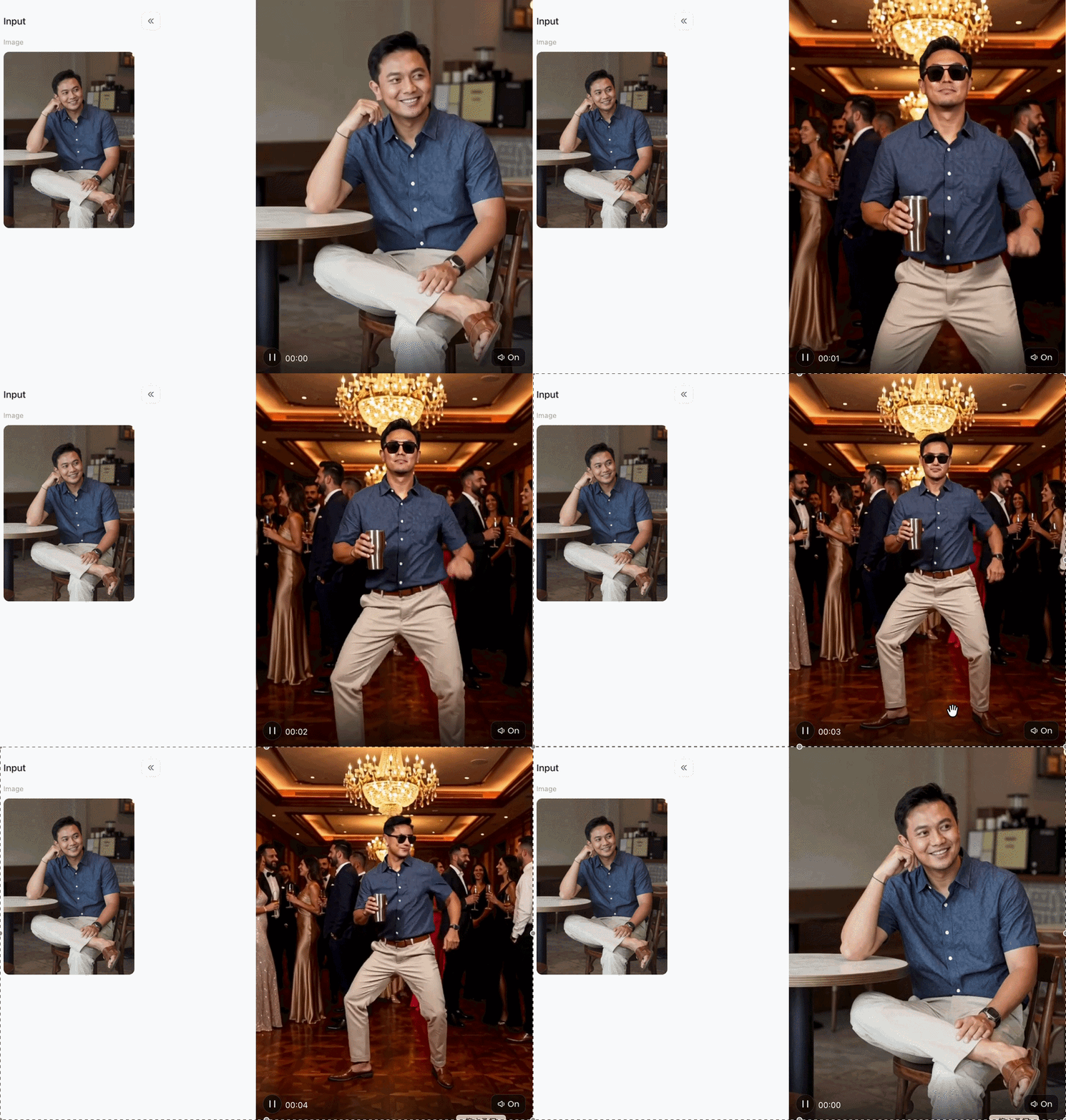
So, let's take a look at the results of the generated "Drake Burning Bridges" AI video!
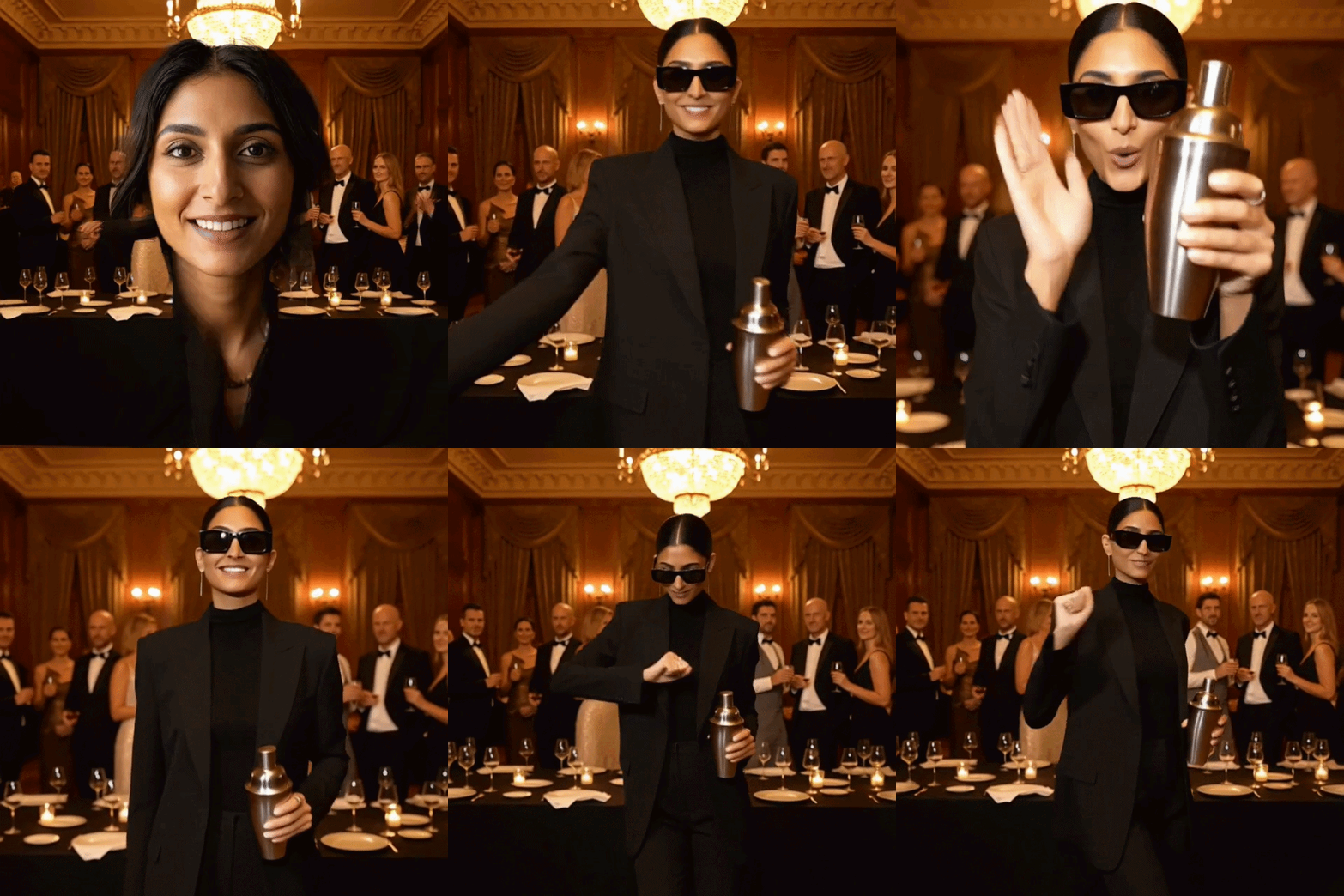
Why Pick a1.art for AI‑Generated Videos?
We’re focusing on real‑world performance, not flashy marketing claims. Here’s why a1.art stands out for making viral clips:
-
Super‑fast exports: Most AI video tools take 5‑10 minutes waiting in queue. a1.art cranks out full‑HD videos in under 60 seconds via cloud processing.
-
Sharp native 1080p quality: No extra upscaling needed. It keeps facial details, hair strands and fabric textures crisp.
-
Natural‑looking faces: Your features stay consistent through head turns, smiles and lip movements , no stiff, fake‑looking masks.
-
Great lighting and depth: It matches your uploaded photo to the warm party glow of the Burning Bridges scene, with realistic shadows and background blur.
-
No messed‑up hands or bodies: Fixes the common AI glitch of extra fingers or warped cups, even during busy action shots.
-
No weird visual bugs: Background party guests won’t clip or distort your main subject.
-
Platform‑ready styling: Tuned for short‑form social media. Colors and pacing fit TikTok, Instagram Reels and YouTube Shorts perfectly.
Performance Comparison: Platform Benchmark Analysis
To prove why specialized video platforms perform better for complex character motion, we tested the how to make drake burning bridges ai video workflow across three major AI generation setups using identical source portraits.
Testing proves that basic software struggles when a character's hand moves directly across their face during the "Where she at?" gesture. The specialized models on a1.art handle complex spatial occlusions effortlessly, keeping both hand structures and underlying face contours crisp and undistorted.
Expert Tips to Maximize Video Quality
To ensure your Drake Burning Bridges AI Video achieves maximum reach and visual polish, keep these professional tips in mind:
-
Fix the Prop Hand in Your Instructions: When setting up your drake burning bridges ai prompt, explicitly specify which hand holds the silver shaker (e.g., "holding a silver cup in the right hand") to prevent the AI from swapping props frame-by-frame.
-
Match Aspect Ratios Early: Always set your generation canvas to a 9:16 vertical ratio before rendering to optimize for mobile screens on short-form video apps.
-
Enhance Lighting Consistency: Choose a reference photo with warm or neutral lighting. Extreme cold lighting or harsh green tints in the source photo can make the subject look out of place against the warm chandeliers.
-
Keep Prompts Action-Focused: When writing custom text inputs, describe the motion chronologically: entrance ➔ raising cup ➔ searching gesture with hand over eyes ➔ confident smile.
Concluison
Mastering how to make a Drake Burning Bridges AI video from one photo gives you a powerful tool for short-form content creation. By starting with a clear source photo, utilizing a structured drake burning bridges ai prompt, and leveraging advanced platforms like a1.art, you can generate ultra-realistic, cinematic video clips in under a minute. Upload your favorite portrait today and turn yourself into the ultimate main character!
FAQs
Can I make a Drake Burning Bridges AI video with a pet photo?
Absolutely. Lots of creators use upright shots of dogs or cats, often decked out in chains or jackets. With tools like a1.art, the party‑scene movements transfer onto your pet’s photo while keeping fur and facial features looking natural.
Do I need video‑editing skills for the Burning Bridges template?
None required. Today’s AI platforms take care of motion tracking, backgrounds, lighting and rendering automatically. Just upload one clear photo and hit generate.
How do I fix distorted faces when the hand covers the eyes?
Basic AI gets mixed up when hands cover parts of a face. a1.art uses a precise workflow that separates your subject’s identity from motion tracking, so you get smooth, glitch‑free results.
Read more
- How to Make the Viral Hotel Lobby AI Video with Two Photos
- Free AI-Generated Porn Videos & Images? Explore Sultry AI Looks
- PixVerse AI Nude: Free Credits & a1.art Style Guide
- 15 ChatGPT GTA 6 Style Poster Prompts for Photos (2026)
- DMK Prompt for Gemini AI: 20 Political Poster Ideas (2026)
- Top 10 Free Undress AI Generators You Should Try Right Now
- Free Make Hot Clothes Remove Video Online Now
- How to Create Indian Actress AI Porn Videos Free?
- 16 Latest Viral AI Image Prompts to Copy and Try in 2026
- AI Image to Video NSFW Generator: The Best Tools for Animating Adult Images
Written by

a1.art
Published on
Oct 14, 2026
Share article


