

Are you tired of the same old pictures online? Want cool, new images without hard work? You're not the only one! Getting fresh, great-looking photos for social media, work, or just for kicks can be a pain. But imagine making any picture you dream up in a snap!
Welcome to AI photo makers! Lots of people are using these artificial intelligence photo creators. From 2026 to 2030, the size of the global AI market is anticipated to increase at a CAGR of 35.9%. An AI photo maker is a super helpful AI imaging software that uses smart tech to make pictures for you. It's like magic for generating photos! You can create anything you want, from real-looking people to make-believe places, super fast. This is a big deal if you need pictures quickly for yourself or your job.
This article will show you how tools like Momo AI Photo Generator work. Plus, we'll look at the best free ways to do it. And we'll teach you how to make awesome images. Get ready to let your creativity shine!
What is an AI Photo Generator?
Imagine having a magical artist inside your computer! That's what an AI photo generator is. It's a super-smart tool that uses artificial intelligence (AI) to create amazing pictures from the words you type. These free Momo AI photo generators have some neat tricks up their sleeves:
-
Words to Pictures: All you have to do is input what you wish to see. Say "a joyful dog playing with a red ball," and you will get a poof! You get that picture from AI.
-
Style Swaps: Plus, you can make your photos look like famous paintings or cool drawings. Want your selfie to look like a cartoon? No problem!
-
Photo Fixer-Upper: These AI photo editing tools can also fix up your photos, like removing unwanted stuff in the background or making colors pop.
-
Your Choice: What's more, you often get to choose the picture's size or pick from cool, ready-made styles, like fantasy or realistic.
So, how does it do this? Well, these AI image generators have learned from millions and millions of pictures and words. When you type something, the AI understands what you mean. Then, like a super-fast artist, it uses what it learned to quickly draw a brand-new image that matches your idea, all in just a few seconds!
Click the picture to generate your exclusive baby life photos with one click👇
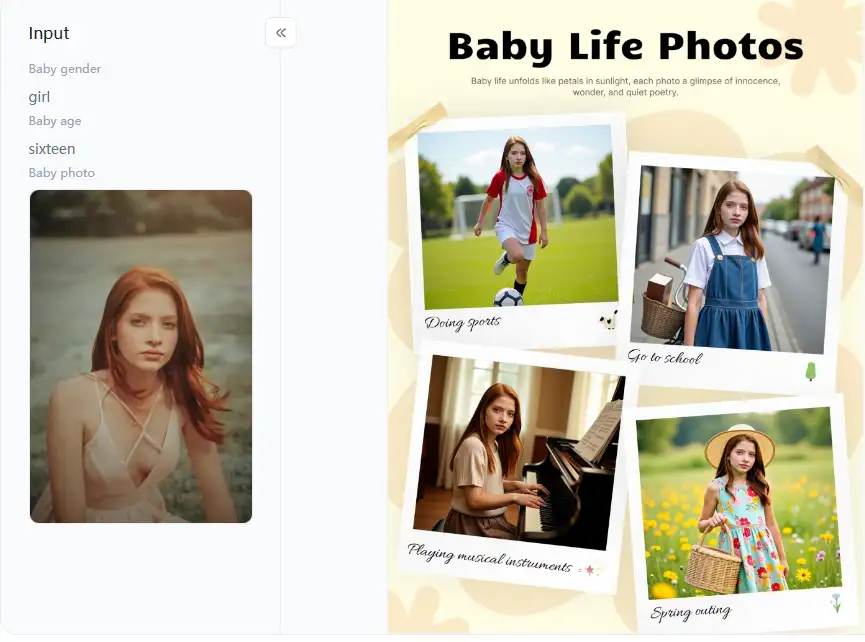
Try it for free with a1.art to generate your exclusive baby life photos!
The Expanding Universe: Uses and Trends of AI Photo Generators
AI photo makers are taking off and doing more than just neat profile pics! These AI art generators are game-changers for artists, business folks, or social media fans.
So, what can they whip up?
-
Art from Scratch: Create paintings or cool drawings.
-
Real-Looking Fakes: Make pictures of things that are great for ads!
-
Perfect Profile Pics: Get that ideal online shot.
-
Special Tricks: Try on virtual tattoos or outfits.
-
Photo Boosters: Plus, make old photos look amazing.
And the best part?
-
Easy Peasy: Anyone can use them; no art degree is needed!
-
Super Fast: Get pictures in a snap.
-
Saves Cash: Many are free, saving you bucks.
-
Highly Personalization: Make truly one-of-a-kind images.
-
Play Around: Super fun for trying new ideas.
But there are a few quirks. AI pictures can look strange, and you must be clear with your words. Plus, people are still figuring out the rules for AI art. Looking ahead, what's next? These AI artists are getting even smarter at making digital pictures!
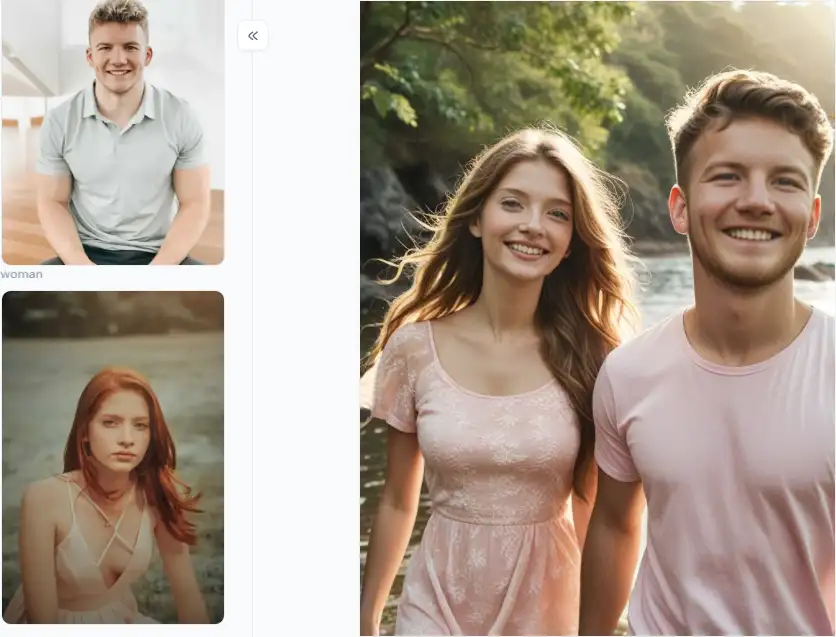
Click the picture to generate your exclusive love makes life beautiful with one click👇
10+ Best Online AI Photo Generators Free: Exploring Your Creative Options
You don't have to pay a dime to play with AI photo makers! There's a whole playground of the best AI photo generators free online just waiting for you:
#1 a1.art
a1.art is a real pro at making AI photos. This AI-powered photo tool is great at creating real pictures, making awesome profile photos, and trying different art styles. They're all about giving you professional-looking pictures with different artistic vibes.
-
Pros: It's easy to use and makes super realistic photos and great profile pics. It's awesome for beginners and experts; they usually give you free tries to get you going.
-
Cons: Some fancy features might cost money after you use up your free tries.
#2 NightCafe Creator
This one's like a big hangout spot for AI art fans. It uses many smart AI brains (like Stable Diffusion and DALL-E 2). It's more of a place to make all kinds of AI photo manipulation.
-
Pros: You can take pictures in many different ways, there's a big community of users, and they give you free daily credits for playing around.
-
Cons: The website might look confusing if you're new to this. Additionally, the credit system may prevent you from taking as many photos as you would like.
#3 Deep Dream Generator
This one's all about making artsy and kind of weird, dream-like pictures. People often use it to mess with photos and make them look super surreal, not so much for making regular-looking avatars.
-
Pros: It has unique artistic styles, giving you three main ways to create: typing in what you want, using a style from another picture, or making it look like a dream.
-
Cons: It takes a while to take pictures. They use an "energy points" system for free automatic image creation.
#4 Artbreeder
It's good at making portraits, characters, and landscapes by mixing different pictures and "genes" together. It's more about playing around and slowly creating what you want rather than just typing it in.
-
Pros: It's fantastic for designing characters and making one-of-a-kind portraits. It feels very interactive.
-
Cons: The free version doesn't let you upload too many of your pictures, and you can't download them in high quality.
Click the picture to generate your exclusive an avatar for you with one click👇
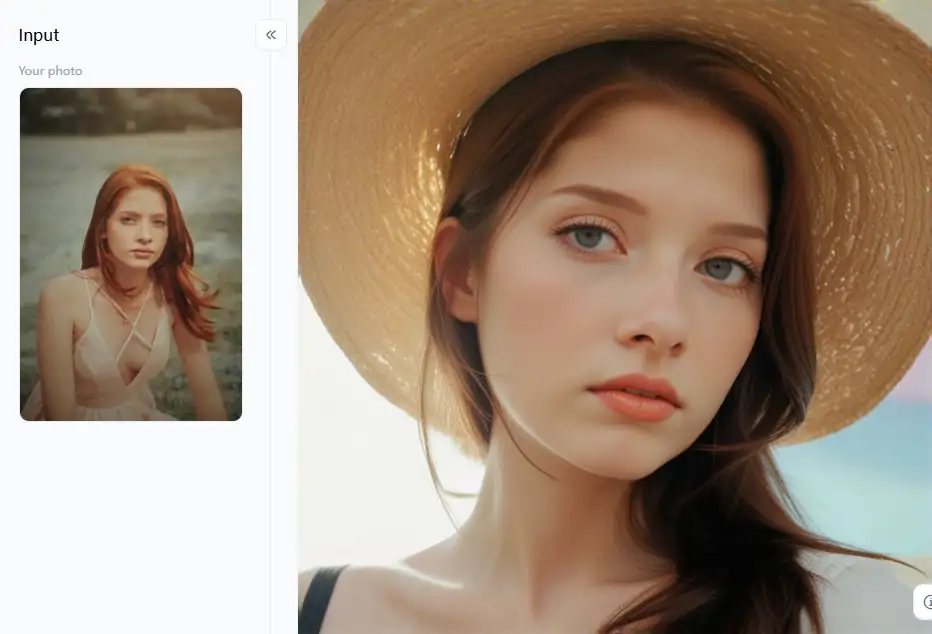
#5 Canva
This one's built right into Canva, which many people use to make all sorts of designs. This makes it super easy to use your AI-made pictures in bigger projects.
-
Pros: It works perfectly with Canva's other photo enhancement tools, is easy to figure out, and gives you a decent amount to do for free.
-
Cons: The pictures it makes might not be as super high-quality or artsy as the ones from tools just for making AI art.
#6 Craiyon (you might remember it as DALL-E mini)
It is another one that's easy for anyone to use. It generates images online of funny and strange pictures from your words, though they might not always be perfect.
-
Pros: It's free to use, you don't need to sign up, and it creates nine pictures simultaneously.
-
Cons: The pictures can be blurry, look weird, and often have watermarks.
#7 StarryAI
This one gives you different AI brains to choose from. It also lets you pick up your picture's look and start with one of your photos. It's good for adding cool AI effects to your photographs.
-
Pros: It has an easy-to-use AI-based photo app for your phone, gives you free daily credits, and has many different styles.
-
Cons: The free pictures have watermarks and aren't super high quality.
#8 Fotor
Its AI maker is good for making quick pictures and has styles like "Anime" and "Oil Painting."
-
Pros: It's connected to other photo editing software and is easy to use.
-
Cons: The free version has some limits and shows ads; its pictures can sometimes look generic.
Click the picture to generate your exclusive beauty of romantic kiss with one click👇
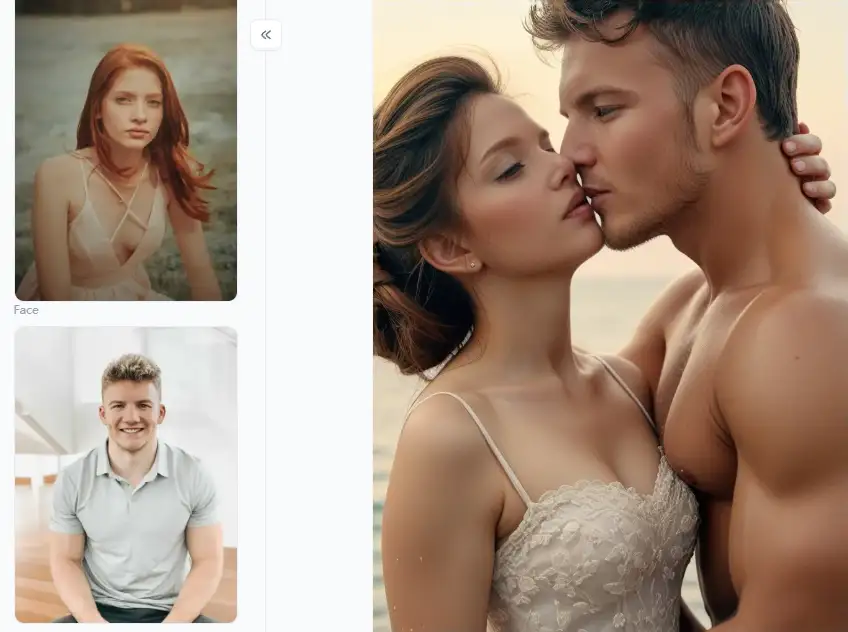
#9 WOMBO Dream
You can use it on your phone or the web. People often use it to make cool backgrounds for their phones.
-
Pros: It makes pictures fast, has many different art styles, and is easy to share your digital photo creations.
-
Cons: The free version might have ads and not let you use all the features.
#10 Picsart
You can make AI pictures alongside Picsart's other smart photo editing tools.
-
Pros: It has many users and tons of creative tools, and it's great if you like using your phone for AI image editing.
-
Cons: The AI maker is just one part of the app, and the free version has some limits.
#11 Simplified
It's designed to help you make pictures for social media quickly.
-
Pros: It's good for making social media stuff and has other AI tools for writing and designing.
-
Cons: The free plan doesn't let you take too many pictures and has some limits on what you can do.
#12 RunwayML Gen-2
This one's a bit more advanced. It's known for making videos from text, but it's also good for quick image generation. It's aimed more at professionals and developers, but they do have some tools that are easy to use.
-
Pros: It uses new AI technology and can even make videos.
-
Cons: The free version doesn't give you many credits or features and can be more complicated.
So, whether you want something super realistic like a1.art or something fun and quirky like Craiyon, there are tons of free AI photo makers out there to help you get creative! Each one has its special way of turning your words into amazing pictures.
Click the picture to generate your exclusive photo to cartoon with one click👇
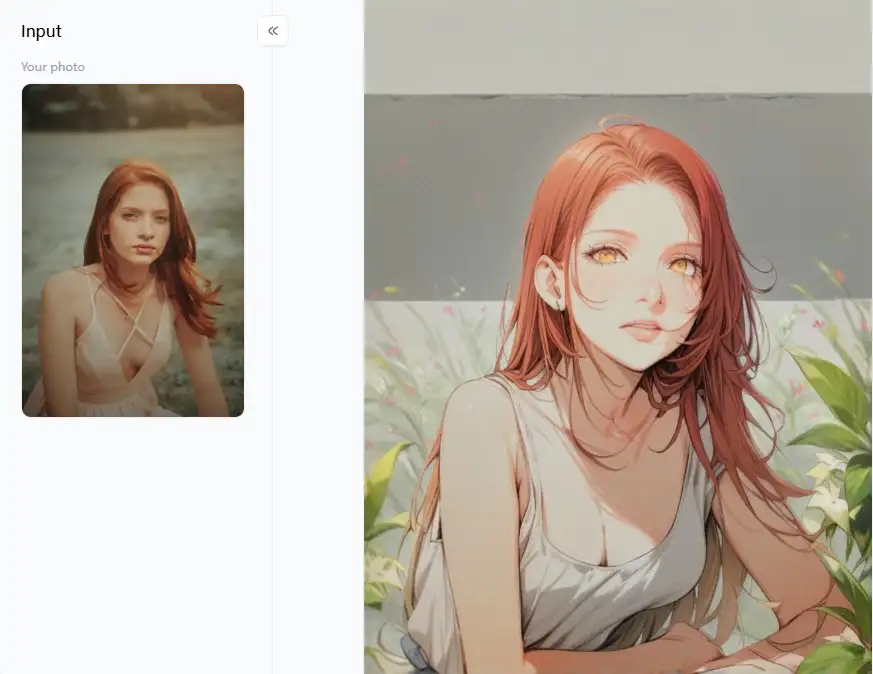
Mastering a1.art: Pro Tips for Stunning AI-Generated Photos
Lots of creative photo tools are out there, but a1.art is special. It's great for making photos look real and professional. This AI tool does more than just create pictures; it opens the door to amazing digital art. Let's see how you can use it like a pro.
Why a1.art Stands Out
This isn't just another automated photo editing app. It gives you fantastic results because:
-
It makes things look real: You can create portraits and scenes like real life.
-
It has many cool filters: These filters help you get the exact look you want quickly.
-
It's easy to use: Beginners can use it easily, but it's also powerful for experts.
-
The pictures look great: You can use the images for professional work.
-
It saves you time: It makes the whole process from your idea to the final picture smooth and fast.
Cool Ways to Use a1.art Filters
a1.art has a bunch of awesome filters. "Headshot Restoration" and "Business Headshot" make great AI profile photos. But guess what? They can do so much more! Here's how to use these filters for all sorts of creative projects:
Making Awesome Characters and Portraits:
-
Start with filters like "Realistic Character" or "A Realistic Portrait" to make digital paintings or character designs.
-
Try "3D Cartoon Headshot CSYG" for fun avatars or drawings.
-
The "Realistic Illustration Style" filter can give your portraits a unique, hand-drawn feel.
-
Want to add some sparkle? Use "More Beauty" to make your subjects look glamorous or perfect.
Creating Stunning Lifestyle and Scenery Photos with AI Photography:
-
Make sweet scenes with "Couple Picnic Portrait" or dreamy "Beach Photography" settings.
-
Bring back memories with "Vintage Street Photography" or the classic "Vintage Black and White Photography." These are perfect for telling stories or adding a timeless touch.
-
Capture loving moments with "Engagement Photography" styles. They're great for announcements or art projects.
Getting Professional and Polished Looks:
-
Besides simple headshots, "Realistic Professional Photos" can work for many business situations. Think of team photos or pictures for work presentations. Try "AI tattoo generator" for a virtual try-on.
How to Use It, Just 3 Steps:
Step1:
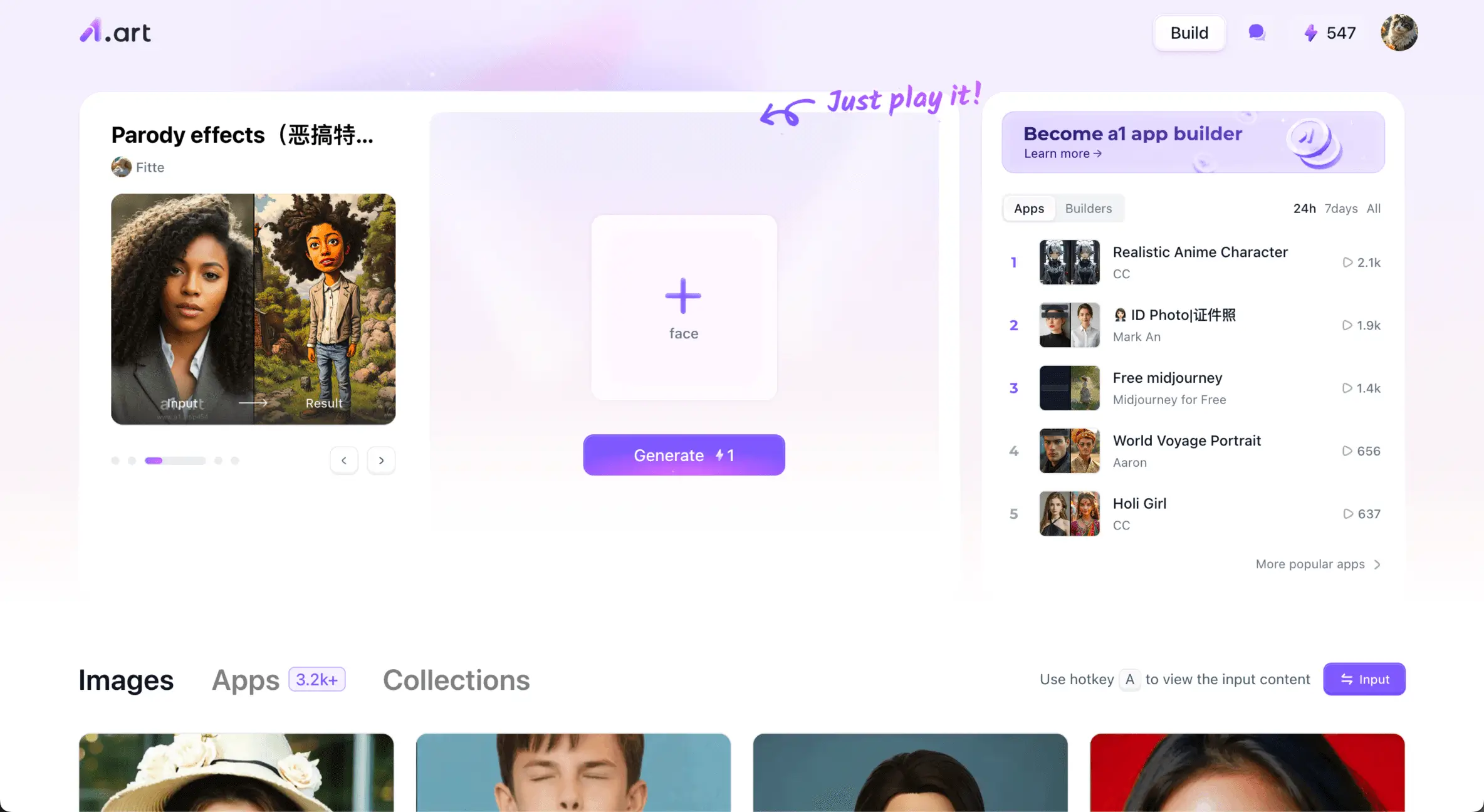
Open a1.art, choose the App that you are interested in, then click 「Run」
Click on the image to experience the same App👇
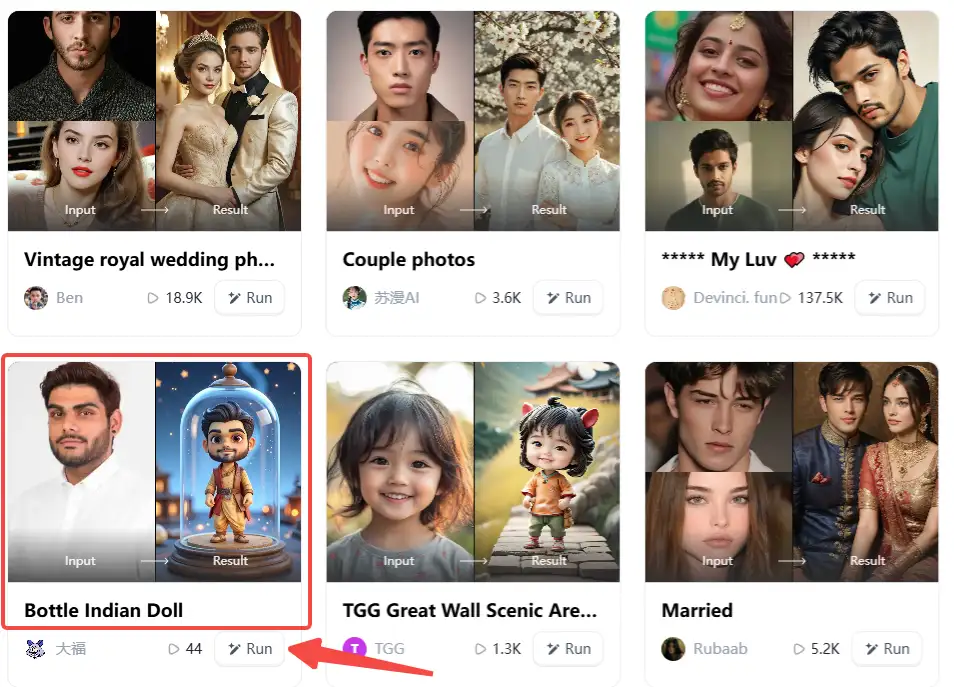
Step2:
Upload a photo/image
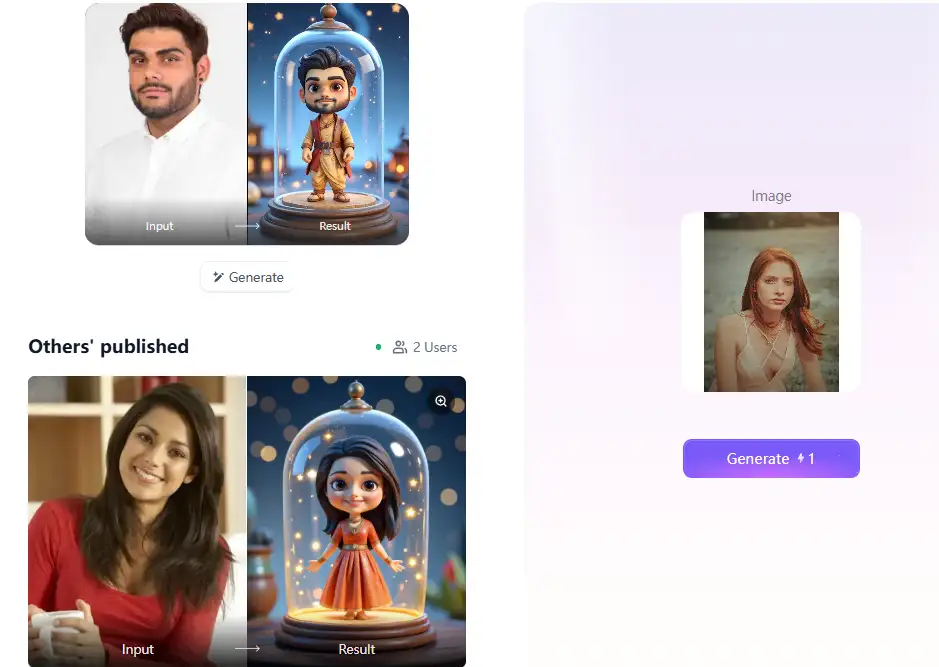
Step3:
Wait 3 seconds, you will get a wonderful result 👇
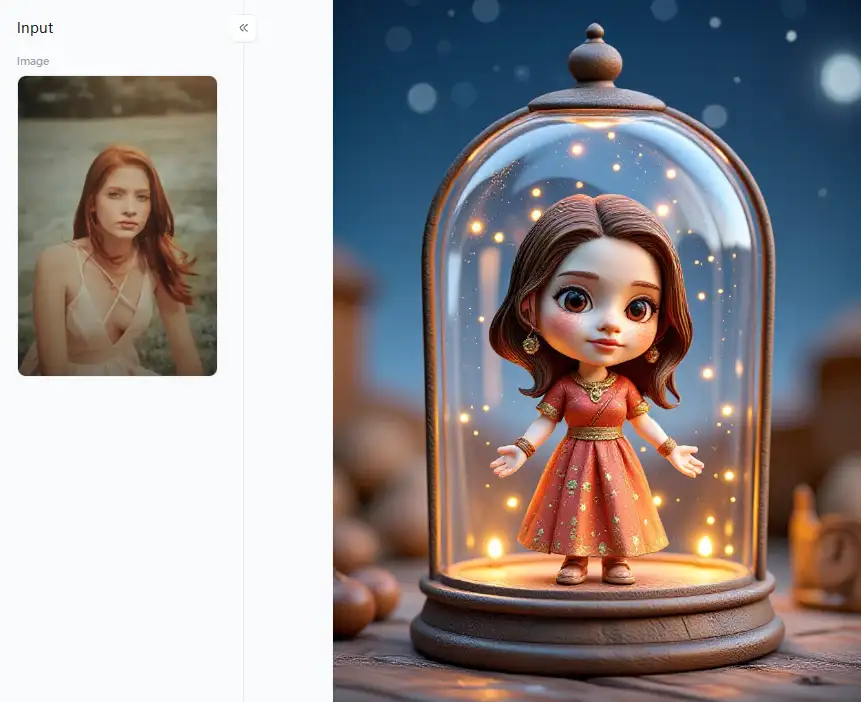
Smart Tips and Tricks for Pro Online Image Creations with a1.art
First things first, have a clear idea. What do you want to create? A real-looking portrait? A magical landscape? Or something different?
Next, tell a good story with your words. The more details you give in your text prompt, the better the result. Include things like:
-
Who or what: For example, "a woman with long red hair," "a futuristic city."
-
What's happening and where: For example, "reading a book by a window," "at sunset with bright lights."
-
The style you want: For example, "looks like a real photo," "like an impressionist painting," or "cyberpunk art."
-
Think about famous artists: "like a Van Gogh painting," "with lighting like in a Ridley Scott movie."
-
Technical details: For example, "super clear, like 4K," "a close-up shot," and "a wide view."
Don't expect perfection right away. Your first try might not be exactly what you want. That's okay! Use it as a starting point.
-
Change your prompt a little.
-
If a1.art lets you edit or make variations, try those.
-
See what happens when you put different filters on your picture. They can change the mood or style.
You can do more than just make simple pictures by using good prompts and all the different AI photo effects. This cool photo tool helps you create amazing visuals that fit exactly what you need for your creative or professional goals.
Conclusion
Want your photos to stand out? AI photo tools now make creating and editing pictures super easy for everyone. Of all the choices, a1.art truly shines. This AI graphic generator makes beautiful, high-quality images and has great tools to boost your photos. Therefore, this site has what you need for a great profile picture or original artwork. Forget boring pictures! Let your imagination run wild, and use a1.art to create breathtaking graphics for the web. See the wonders of intelligent photo editing by giving it a try today.
Read more
- Celebrate Father's Day with a1.art AI Father's Day Generator
- Best 10+ AI Kissing Video Generators Online: Create Your Perfect Virtual Kiss in 2026
- Celebrate Eid al-Adha with a1.art AI Eid al-Adha Generator
- Top 10+ Packgod Roast Generators Free 2026: Unleash Your Inner Packgod
- 12 Best BasedLab Alternatives in 2026: Unleash Your Creative Potential
- 10+ Best AI Face Swap Videos Online Free: Your Ultimate Guide to Viral Creations
- Seaart vs. a1.art: Which Face Swap Tool is the Best 2026
- Top 15 Free AI Clothes Remover Tools Online 2026
- Celebrate Islamic New Year with AI: Create Spiritual Art
- How to Remove Clothes from Photos Using AI Tools
Written by
a1.art
Published on
Dec 17, 2025
Share article


